

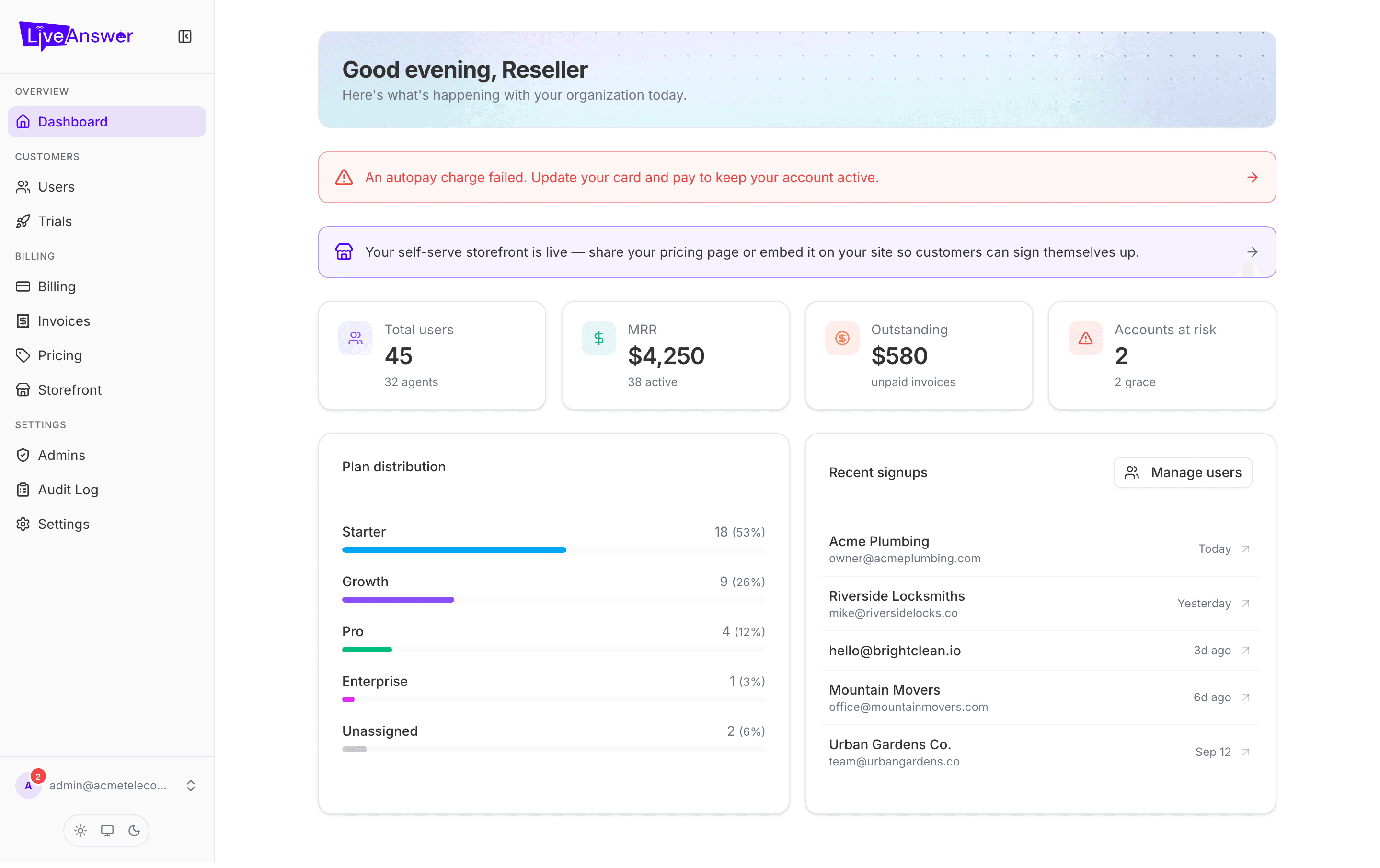
The dashboard is the first page you see after signing in. It answers three questions in one look: how big is my business, is anyone at risk, and what's new.
Alerts at the top
Two banners can appear above the numbers. You'll only see them when they apply to you.
- "An autopay charge failed" (red) — the card on file for your LiveAnswer invoice was declined. Click the banner to go to Billing and update your card. Your customers keep working while you sort it out, but don't leave it too long.
- "Your self-serve storefront is live" (blue) — your branded pricing page is ready to share. Click through to copy the link or the website embed code.
The four numbers
| Card | What it means |
|---|---|
| Total users | How many customer accounts you have. The small line underneath counts their AI agents. |
| MRR | Monthly recurring revenue — what your active subscriptions add up to each month. The line underneath shows how many are active. |
| Outstanding | Invoices that have been issued but not yet paid. |
| Accounts at risk | Customers whose payment failed and who are in the grace period, or who have been suspended. The line underneath shows how many are in grace. |
Note: Hover any card for a short explanation of the number.
Plan distribution
A bar for each plan showing how many customers are on it, with the percentage of your total. "Unassigned" means a customer exists but hasn't been put on a plan yet — worth following up.
Recent signups
Your five newest customers, with how long ago they joined. Click a row to open that customer, or Manage users to see everyone.