

Welcome to LiveAnswer. Your Reseller Portal is where you run your AI-receptionist business: add customers, set your prices, track trials, manage billing, and brand the experience as your own.
This guide walks through each area of the portal. You don't need any technical background to use it.
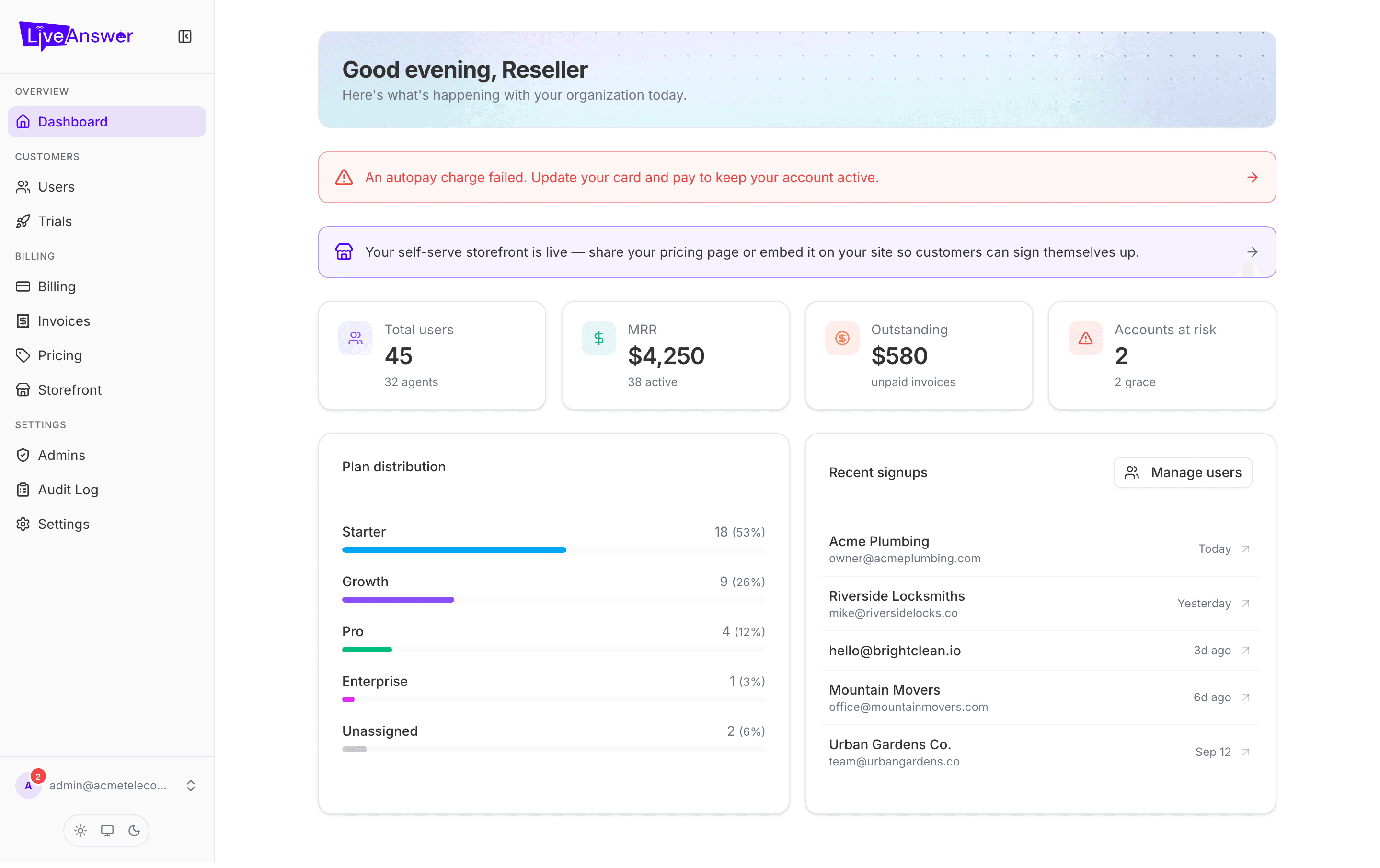
Signing in
Your LiveAnswer account manager sends you a login link when your reseller account is created. Sign in with the email and password you were given. You can change your password any time from Settings → Admins by editing your own account.
Heads up: Keep your login private. If someone else on your team needs access, add them as a team member instead of sharing your password (see Adding your team).
Finding your way around
The left sidebar is organised into four groups:
| Group | Pages | What it's for |
|---|---|---|
| Overview | Dashboard | A one-screen summary of your business |
| Customers | Users, Trials | The businesses you've sold to, and trials in progress |
| Billing | Billing, Invoices, Pricing, Storefront | Money in and money out |
| Settings | Admins, Audit Log, Settings | Your team, a record of changes, and configuration |
On a phone or tablet the sidebar collapses behind the menu button in the top-left corner.
The bell icon
The bell at the bottom of the sidebar shows announcements from LiveAnswer — maintenance windows, new features, and important account notices. A red badge means unread items.
Light and dark mode
Use the three small buttons under your account name to switch between light mode, dark mode, or match your device.
A note on words we use
- Customer — a business that bought an AI receptionist from you. Inside the portal these are listed under Users.
- Agent — one AI receptionist. A customer can have more than one (for example, one per location).
- Plan — the monthly package a customer is on (included minutes, price, and so on).
- Add-on — an optional extra a customer can attach to their plan, such as a pack of extra minutes.
Where to go next
- New to the portal? Start with Your dashboard at a glance.
- Ready to add your first customer? Jump to Managing your customers.
- Want to sell online without lifting a finger? See Your self-serve storefront.