

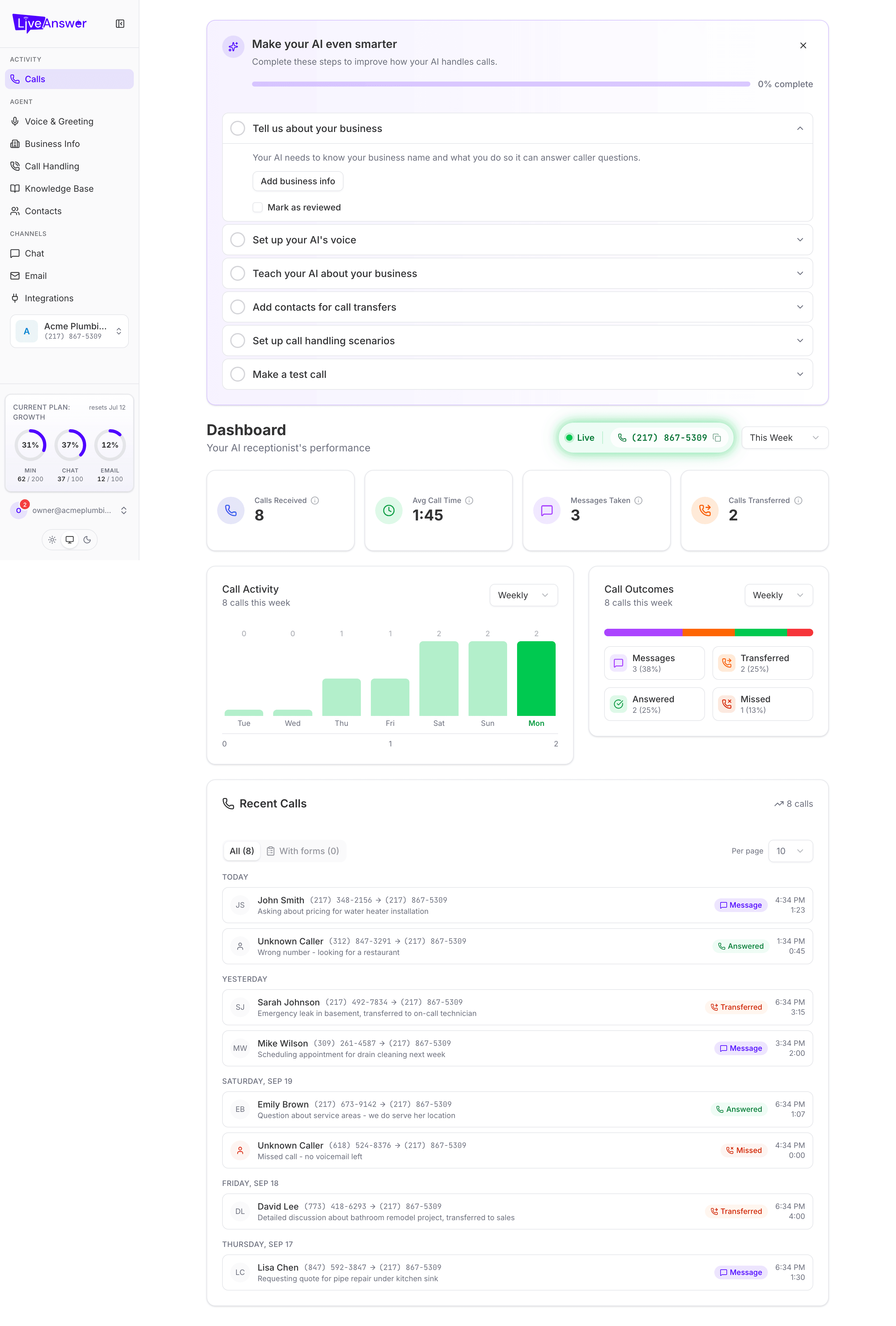
Calls is the first page you see when you sign in. It shows what your AI receptionist has been doing: how many calls it took, how they ended, and the details of each one, including recordings and any information it collected.
Choosing a time period
The dropdown in the top-right switches everything on the page between Today, This Week, This Month, and All Time.
The four numbers
| Stat | What it counts |
|---|---|
| Calls Received | Every incoming call your AI answered in the period. |
| Avg Call Time | How long callers spent talking to your AI, on average. |
| Messages Taken | Calls where your AI collected the caller's details so you could follow up. |
| Calls Transferred | Calls your AI connected through to you or someone on your team. |
Call Activity
A bar chart of call volume over time. Switch between Weekly, Monthly, and Yearly to zoom in or out. Use it to spot your busy days and hours.
Call Outcomes
A breakdown of how calls ended:
- Answered — handled entirely by your AI, no transfer needed.
- Messages — your AI took a message.
- Transferred — passed to a contact.
- Missed — not answered, or the caller hung up early.
If Missed is creeping up, check that your greeting is short and your business hours are filled in so callers get an answer quickly.
Recent Calls
Every call, grouped by day, newest first. Each row shows the caller's number, when they called, how long it lasted, and how it ended.
Use the tabs above the list to show All calls or only those With forms, meaning calls where your AI completed a scenario and collected information.
Opening a call
Click any row to expand it. You'll see:
- A recording you can play right there.
- The conversation as a transcript, laid out like a chat between the caller and your AI.
- Any actions your AI took during the call, such as sending a link or transferring, shown inline in the transcript.
- The information collected if a form was completed, listed field by field.
Click the row again to collapse it. The list is paged; use Per page and the controls at the bottom to move through it.
Note: Calls appear here a minute or two after they end, once the recording and transcript are ready.