

This guide provides step-by-step instructions for forwarding a client’s main phone line to another number or voicemail.
Request Overview
Clients may request to forward their main phone line to a different number or voicemail. For example, Blackhawk requested that the SummersLaw main line be forwarded to a voicemail or another phone number.
Accessing the Client’s Account
For agents and admins, accessing client accounts requires the appropriate admin permissions in Evo Voice.
-
Log in to Evo Voice as an admin.
-
Use the Switch Account option to access the correct client account.
-
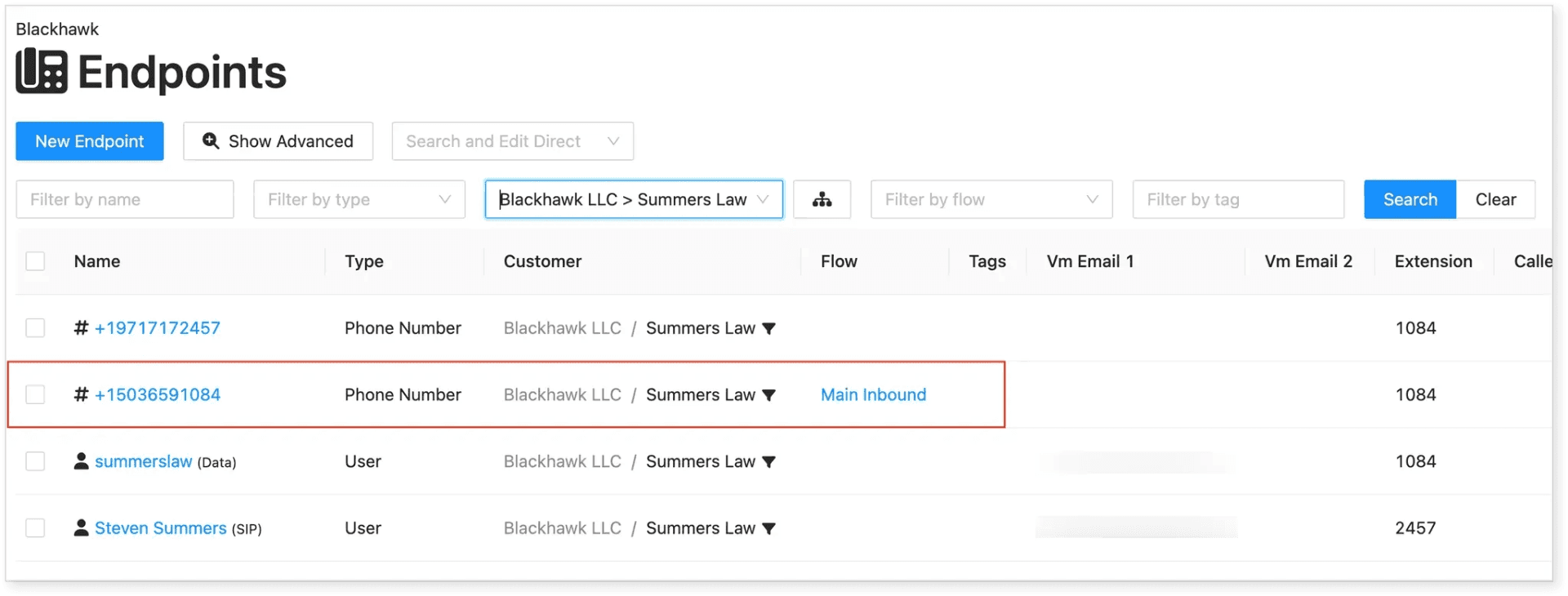
Use the Search Toolbar to find the client’s account.
- Example: Searching for Summers Law.
-
Open the client’s main phone number.
- The main phone number is typically labeled as “Main Inbound” in the flow setup.
Configuring Call Forwarding
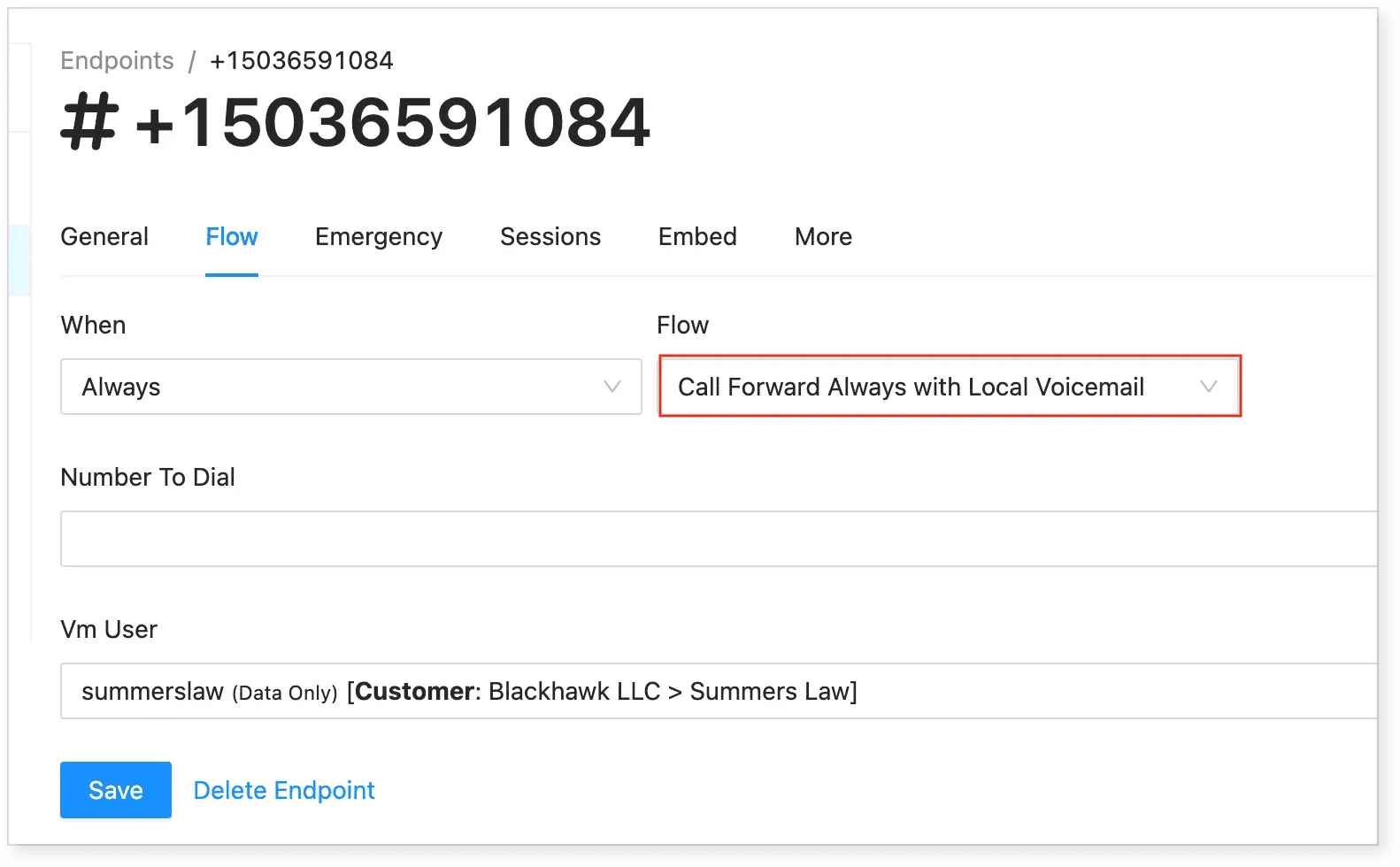
After accessing the client’s account and locating the main phone number, you will now configure the call forwarding settings to ensure that calls are redirected as requested.
-
Open the Flow Tab for the selected phone number.
-
Set the following options:
-
When → Set to Always
-
Flow → Select Call Forward Always with Local Voicemail (or a similar forwarding flow available for EvoTech clients).
-
Number to Dial → Enter the forwarding phone number. If forwarding to voicemail, use the next option.
-
VM User → If the voicemail or receiving phone is already configured, search for and select it here.
-
-
Click Save to apply the changes.