

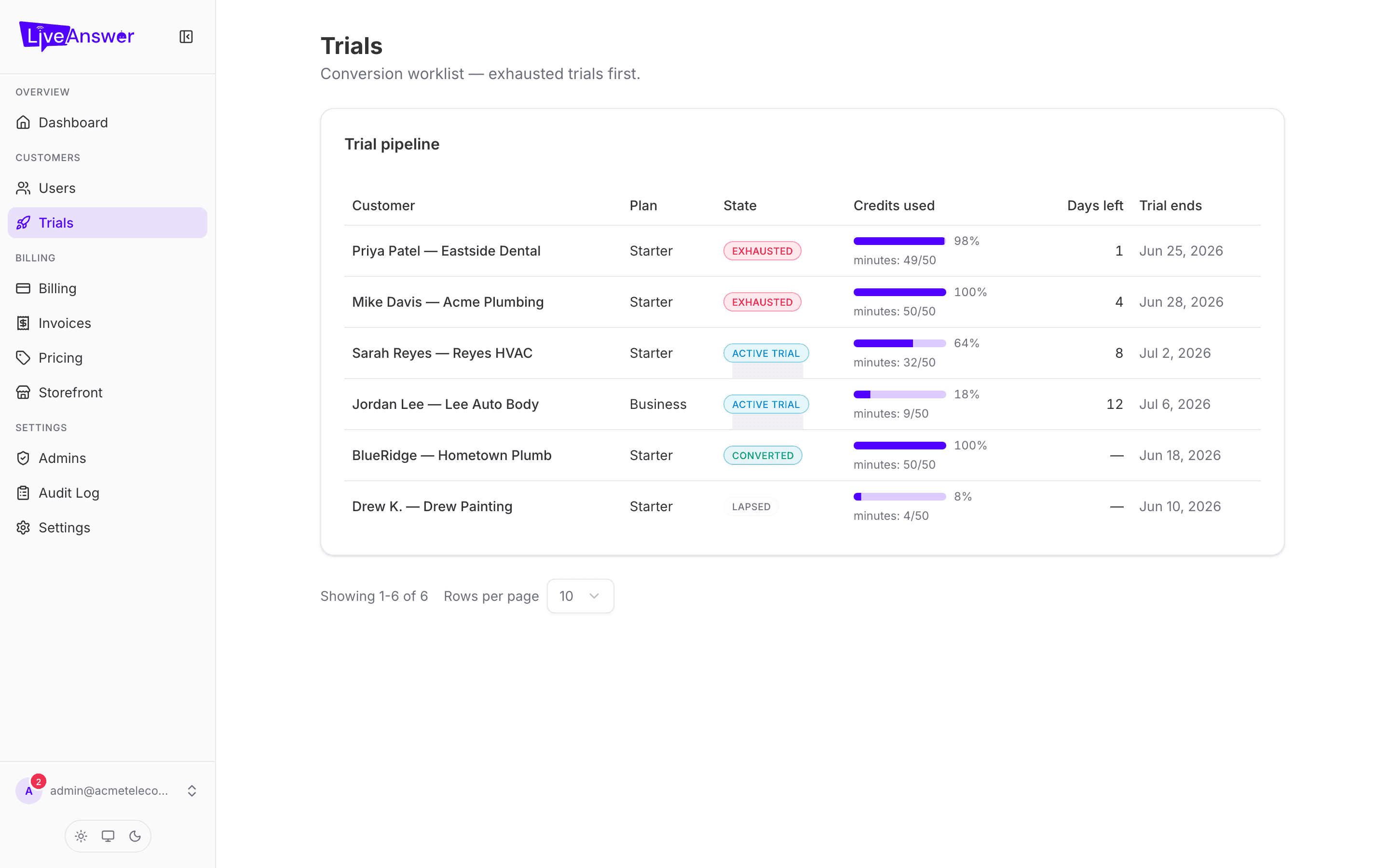
A free trial lets a prospect try their AI receptionist before paying. The Trials page is your conversion worklist — it puts the trials most likely to need a nudge at the top.
Note: Trials are switched on per reseller by LiveAnswer. If you don't see the trial option when adding a customer, ask your account manager to enable it.
Reading the list
Trials are sorted so Exhausted ones come first, then active trials with the fewest days left. That's the order to work them in.
| Column | What it means |
|---|---|
| Customer | The trialling business. Click to open their account. |
| Plan | The plan they'd move onto when they convert. |
| State | Active trial — still going. Exhausted — they've used all their trial minutes but the trial period hasn't ended. Converted — they became a paying customer. Lapsed — the trial ended without converting. |
| Credits used | A bar showing how much of the trial allowance they've used, with the exact minutes underneath. |
| Days left | Days until the trial period ends. |
| Trial ends | The end date. |
Who to contact first
- Exhausted, days still left — the best signal you'll get. They used everything you gave them. Reach out and offer to start their plan now.
- Active, few days left, low usage — they may have hit a setup snag. A quick check-in can save the sale.
- Lapsed — the trial ended without a decision. Worth one follow-up; their setup is still in place if they want to continue.
What happens when a trial ends
That depends on how the trial was set up when the customer was created:
- If the trial was set to convert automatically, billing starts on the plan they trialled.
- If it was set to lapse unless confirmed, the account pauses until you or the customer confirm the plan.
You can also end a trial early and start billing now, extend the trial, or switch the trial to a different plan from the customer's detail page under Plan → Manage Plan.