

Every business you've sold an AI receptionist to appears under Users. This is where you add new customers, check on existing ones, and step into a customer's account to help them.
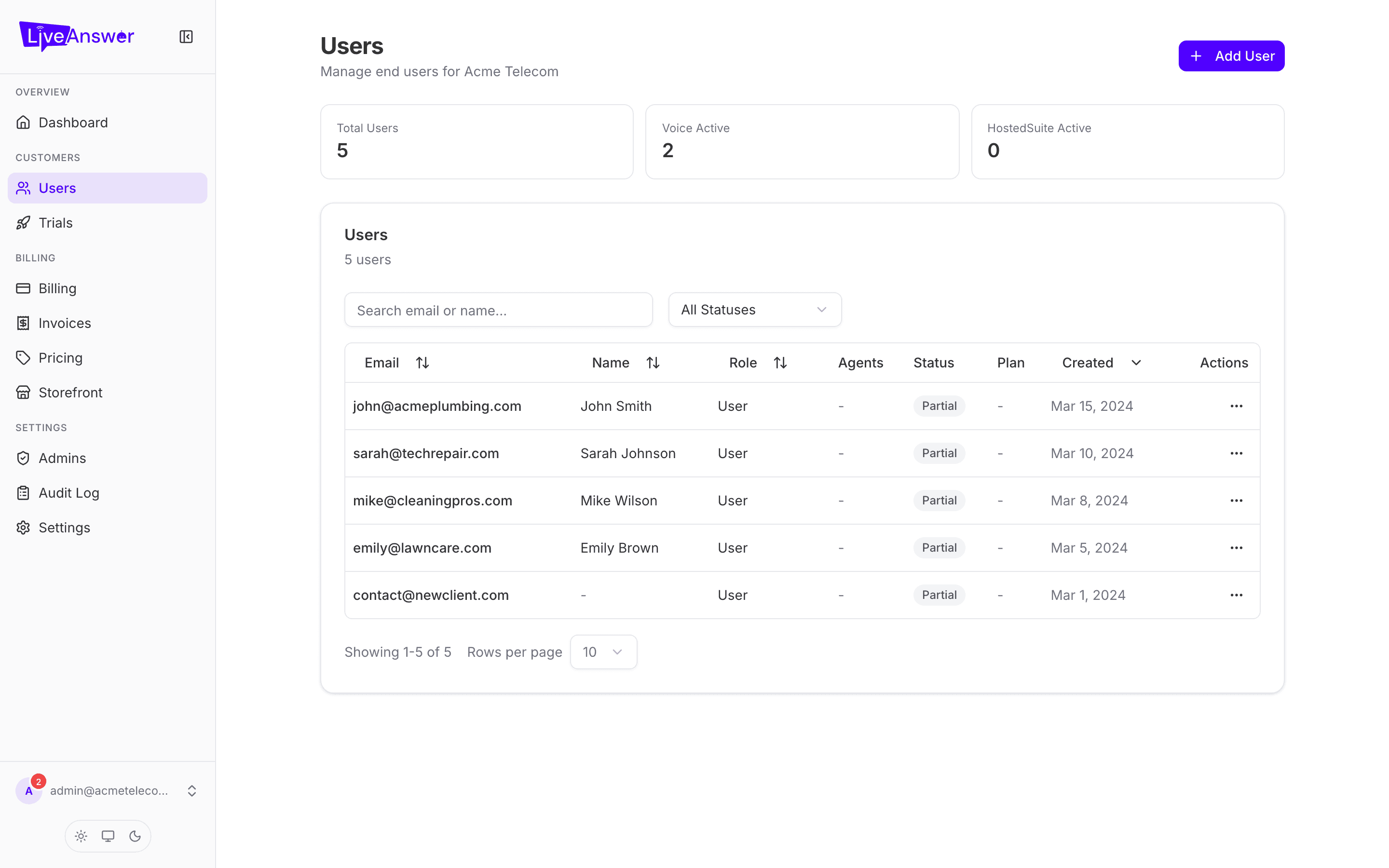
The Users list
At the top, three quick counts: Total Users, Voice Active (customers whose phone number is live), and HostedSuite Active (customers whose HostedSuite connection is working).
Below that, every customer in a table:
| Column | What it shows |
|---|---|
| Email and Display name | The account owner. Click the row to open their details. |
| Agents | How many AI receptionists they have. |
| Status | Whether setup is complete: Active (all good), Pending (still provisioning), Partial (one connection isn't finished), or Failed (something needs your attention). |
| Plan | The plan they're on. |
| Created | When the account was made. |
Finding someone: type any part of a name or email into the search box, or use the status dropdown to see only Pending or Failed accounts.
Adding a customer
- Click Add User in the top-right.
- Enter the customer's email and a temporary password (at least 8 characters). Share these with the customer so they can sign in and change the password.
- Optionally add a display name (usually the business name) and choose an industry template. The template preloads sensible defaults for that kind of business. Leave it on Use reseller default if unsure.
- Choose the plan they'll start on.
- If you offer trials, tick Start on a free trial and set the trial length.
- Click Create User.
Setup runs in the background. The customer will show as Pending for a minute or two, then Active.
The customer detail page
Click any customer to open their page.
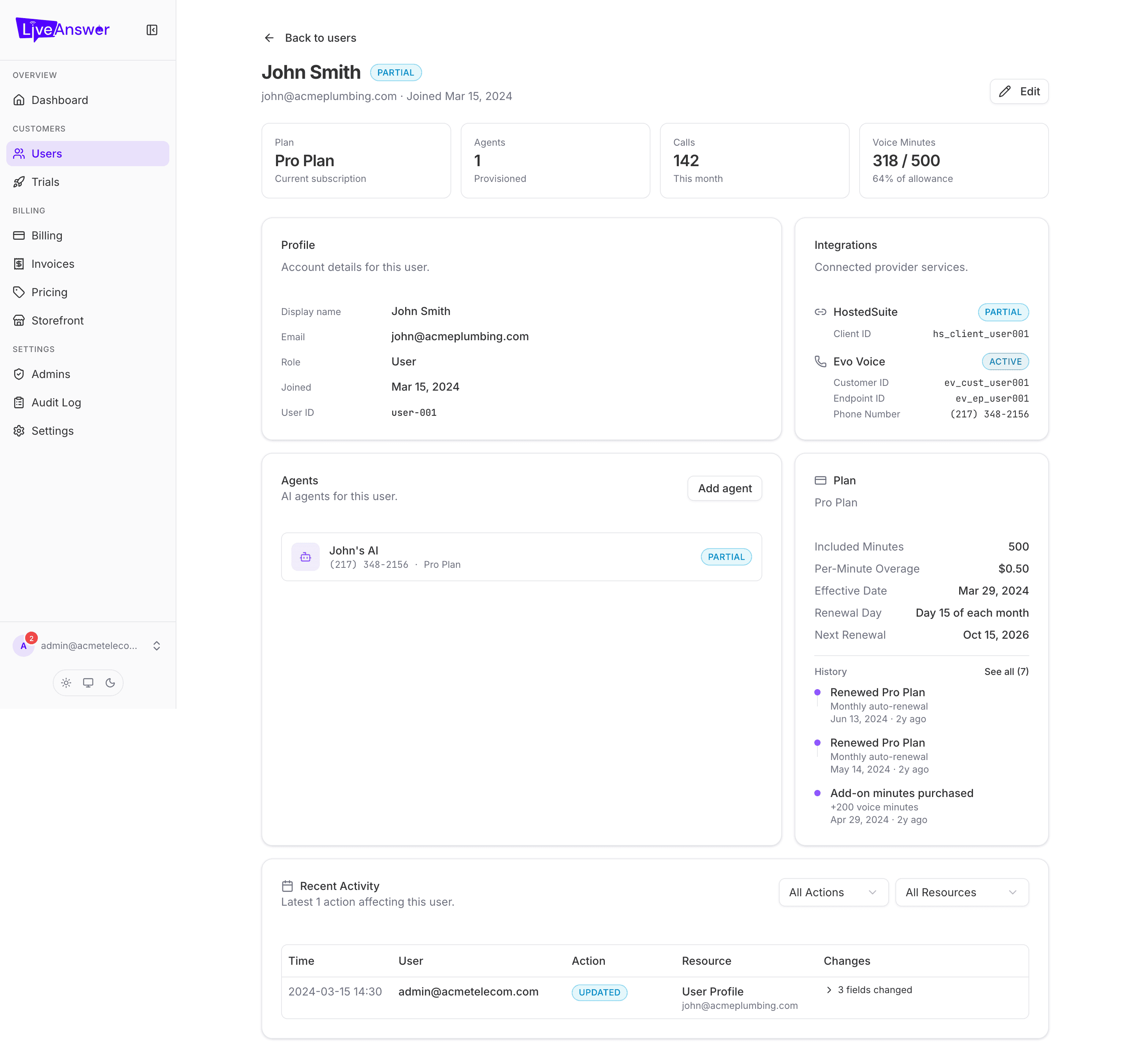
At the top: the customer's name, their setup status, email, and join date. On the right, Edit lets you change their display name, reset their password, or set their timezone.
The four cards summarise the account: Plan, number of Agents, Calls this month, and Voice Minutes used against their allowance.
Profile — the account details.
Integrations — the two services that power the receptionist: HostedSuite (the AI brain) and Evo Voice (the phone line), each with its own status and the assigned phone number.
Agents — each AI receptionist this customer has. Click Add agent to give them a second one (for example, a second location or a separate department line).
Plan — everything about their subscription: included minutes, the per-minute overage rate, their renewal day, and the next renewal date. Below that is a History of every plan change, renewal, and add-on purchase.
Recent Activity — a record of changes made to this account, with filters by action type and resource.
Stepping into a customer's account
Sometimes the quickest way to help is to see exactly what the customer sees. Open the ⋯ menu on any row in the Users list and choose Impersonate. You'll be signed in as that customer until you exit impersonation. Everything you do while impersonating is recorded in the Audit Log under your name.
Heads up: Only impersonate a customer to support them. Treat their account as you'd want yours treated.