

This article covers updating the card LiveAnswer charges, and finding and downloading your invoices.
Updating your card
From Plan & Billing, click Manage card.
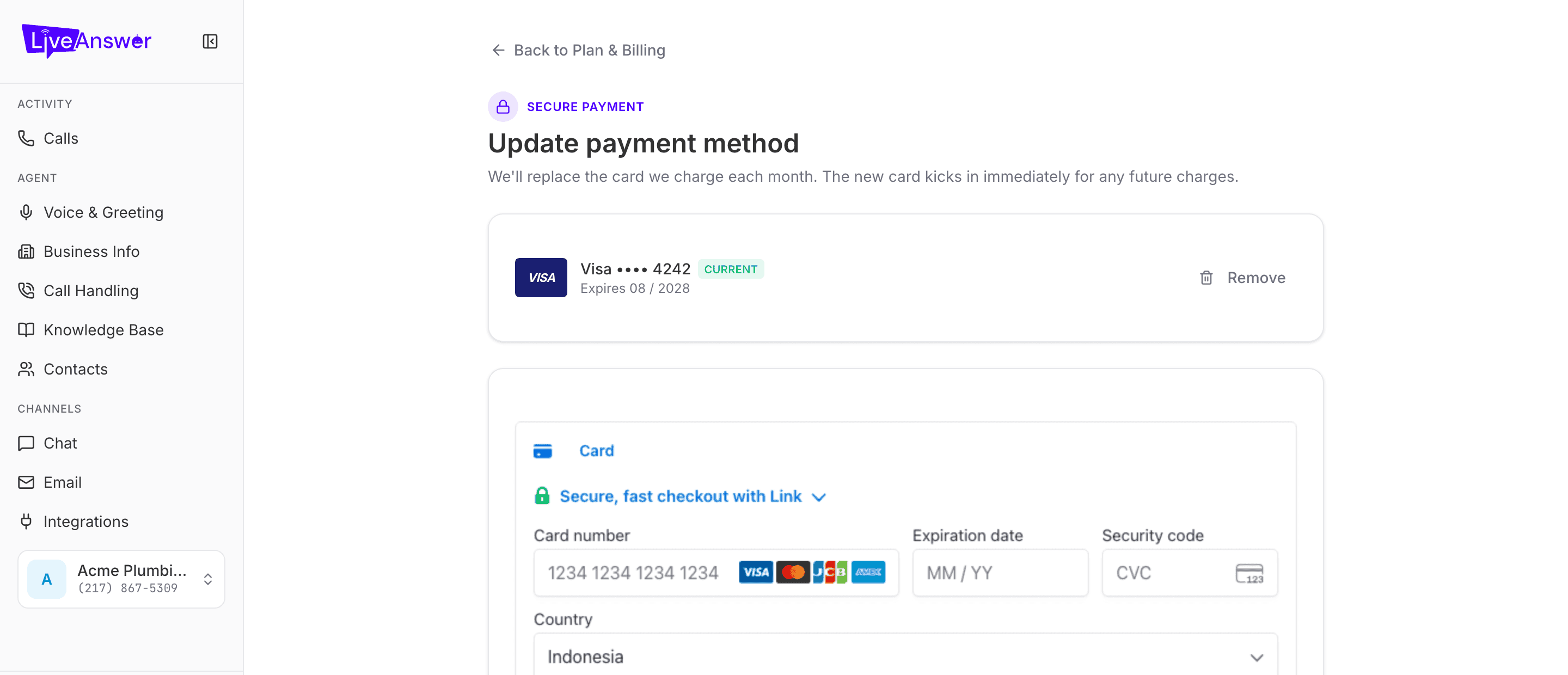
The page shows your current card at the top. Below it is a secure card form:
- Enter the card number, expiration date, and security code.
- Choose the card's country.
- Optionally save your details with Link for faster checkout next time.
- Click Save card.
The new card replaces the old one immediately and is used for all future charges. To take a card off entirely, click Remove beside it; you'll need to add a replacement before your next renewal.
Note: Card details are entered directly into a secure form provided by our payment processor. LiveAnswer never sees or stores your full card number.
Billing history
From Plan & Billing, click View all beside Recent invoices.
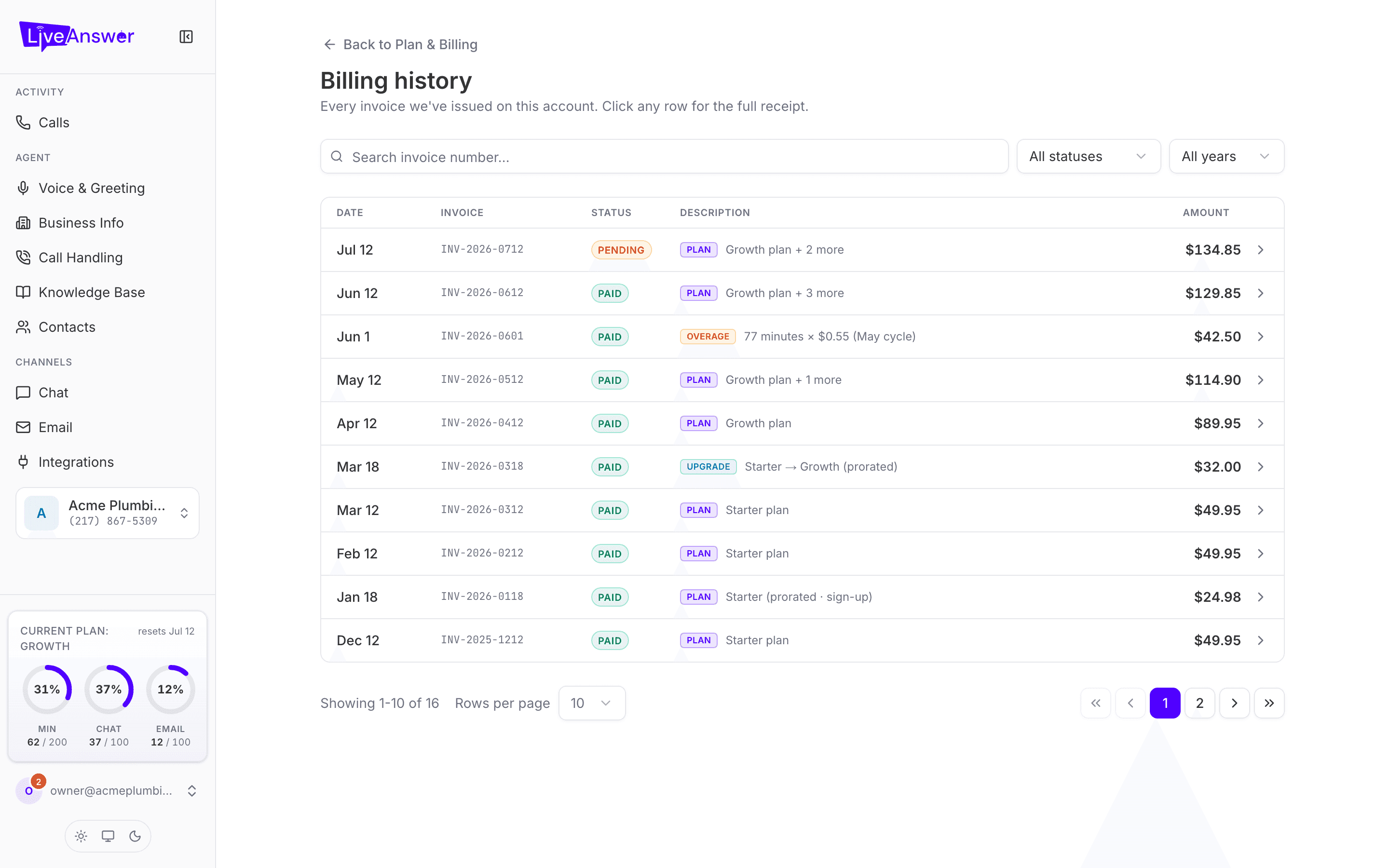
Every invoice ever issued on your account, newest first. Each row shows the date, invoice number, status, a short description, and the amount.
| Status | Meaning |
|---|---|
| Paid | Charged successfully. |
| Pending | Issued but not yet charged, usually your upcoming renewal. |
| Failed | The charge didn't go through. Update your card. |
| Void | Cancelled. Nothing is owed. |
The description badge tells you what kind of charge it was: Plan (your monthly plan and add-ons), Overage (extra minutes beyond your limit), Upgrade (a prorated plan change), Credit, or Refund.
Use the search box to find an invoice number, and the dropdowns to filter by status or year. Change Rows per page or use the page controls at the bottom to move through the list.
Reading an invoice
Click any row to open it.
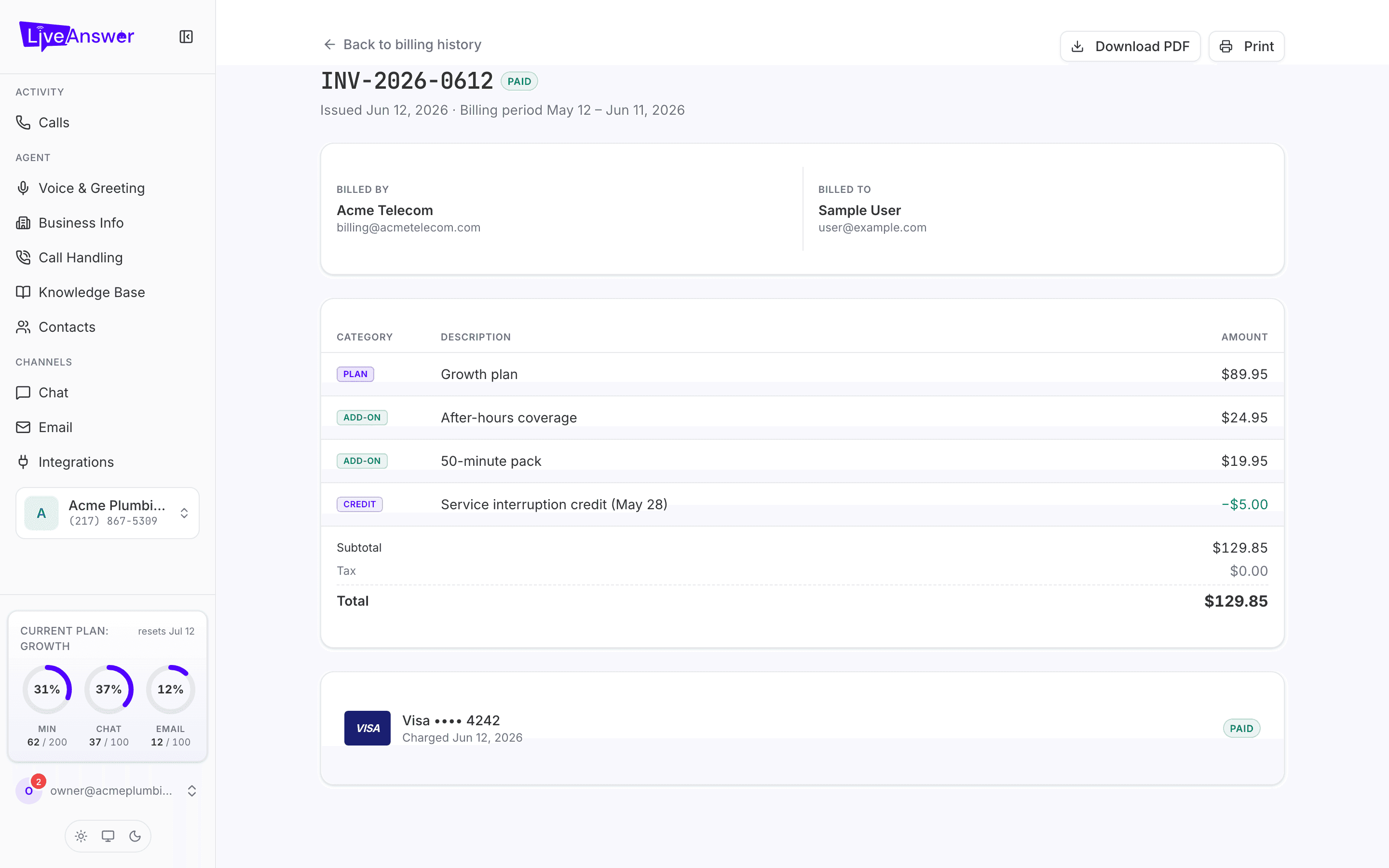
You'll see the invoice number and status, the issue date and billing period, who it's billed by and billed to, then one line per charge: your plan, each add-on, any overage, and any credits. Subtotal, Tax, and Total are at the bottom, followed by the card that was charged and when.
- Download PDF saves a copy for your records or accountant.
- Print sends it to your printer.
- Back to billing history returns to the list.