

Plan & Billing is where you see what your plan includes, how much of it you've used this month, what your next bill will be, and where you change plan or add extras. Open it by clicking the Current plan card in the sidebar.
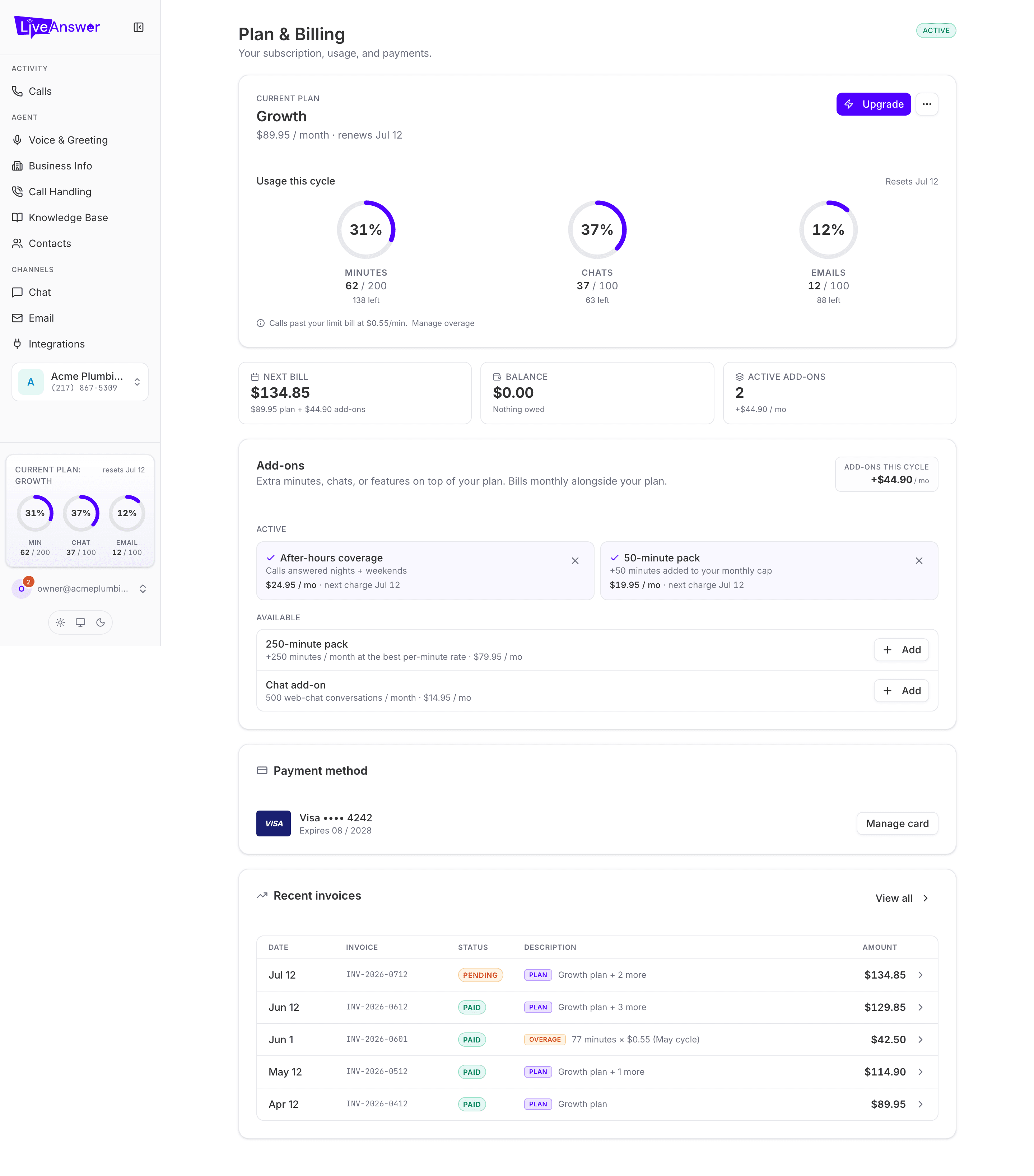
Current plan and usage
The top card shows your plan name, monthly price, and renewal date. Usage this cycle shows three dials, Minutes, Chats, and Emails, with how much you've used, how much is left, and when they reset.
Under the dials is your overage rate: what a call minute costs once you've used up your included minutes. Click Manage overage to switch on Pause at cap instead. With it on, new calls are paused once you reach your monthly minutes and callers hear your closed or busy message until the next reset. No surprise charges, but you will miss calls, so you are asked to confirm.
The three summary cards
- Next bill — what you'll be charged at renewal: plan plus active add-ons.
- Balance — anything currently owed. Normally $0.00 · Nothing owed.
- Active add-ons — how many you have and what they add per month.
Add-ons
Extras on top of your plan, billed monthly alongside it.
- Active add-ons show their price and next charge date. Click the × to remove one; you'll be asked to confirm, and it stays active until the end of the current cycle.
- Available add-ons show what they include and cost. Click Add to see the details and confirm. You are charged the full monthly fee today and it kicks in right away, then it bills every month with your plan.
Typical add-ons are minute packs (extra minutes every month at a better rate than overage), a chat pack, and after-hours coverage.
Changing plan
Upgrade takes you to a comparison of the tiers above yours.
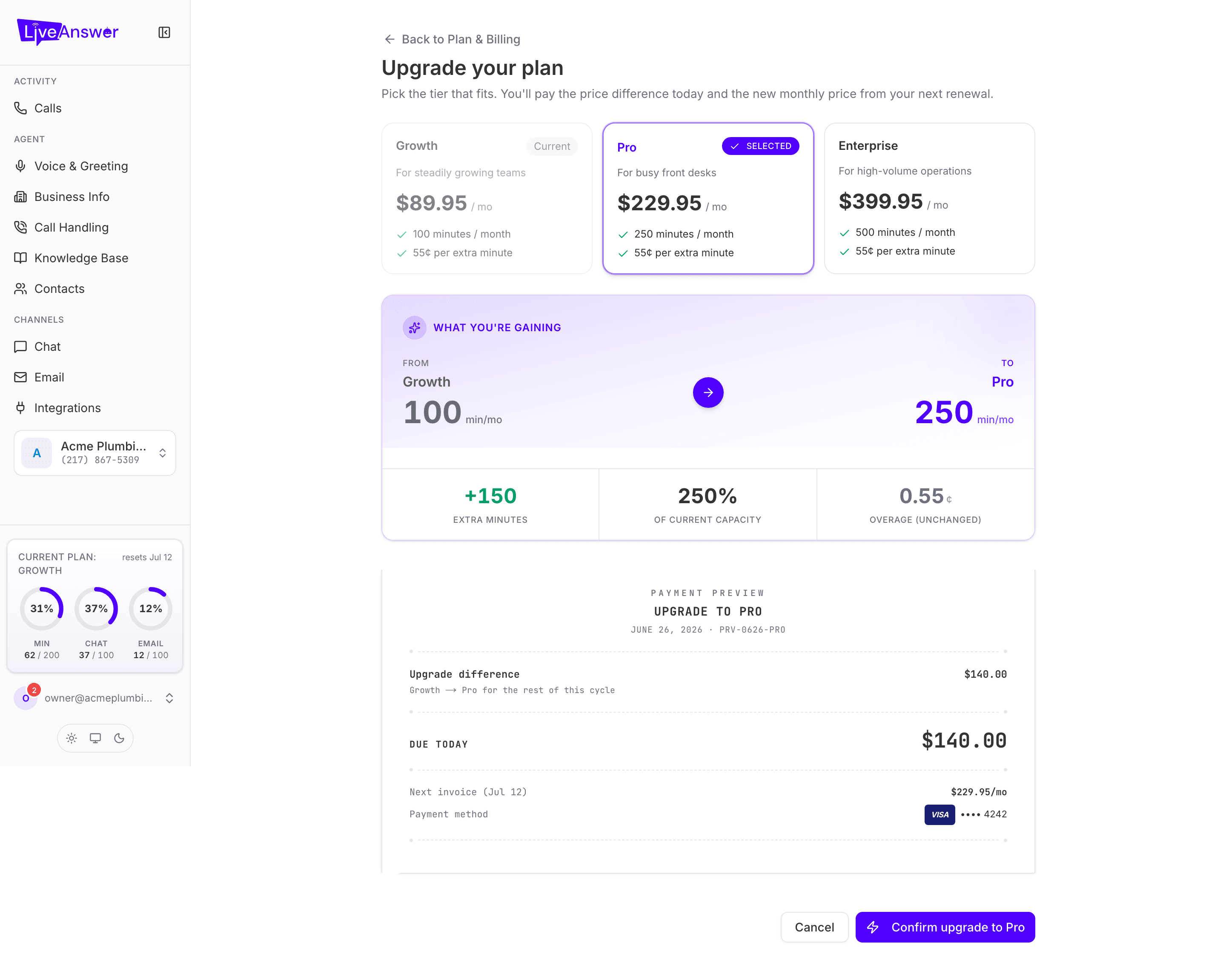
Pick a tier and the page shows what you're gaining and a payment preview: the prorated difference you pay today for the rest of this cycle, and your new monthly price from the next renewal. Click Confirm upgrade to apply it; your new limits are available straight away.
The ⋯ menu beside Upgrade has two more options:
- Downgrade — move to a smaller tier. The downgrade takes effect at your next renewal so you keep what you've paid for; the page shows the billing impact before you confirm.
- Cancel plan — stops your subscription at the end of the current cycle. Your AI keeps answering until then, and you can choose Keep my plan any time before that date to change your mind.
Payment method and invoices
Payment method shows the card on file. Click Manage card to replace it.
Recent invoices lists your last few bills with their status. Click a row to open the full invoice, or View all for your complete billing history. See Payment method and invoices for details.
Heads up: If a payment fails, update your card promptly so your AI keeps answering without interruption.