

This guide provides step-by-step instructions for configuring EvoVoice to process and analyze calls within a single flow, combining both the Dial Node and AI Call Insights for a streamlined Sentinel setup.
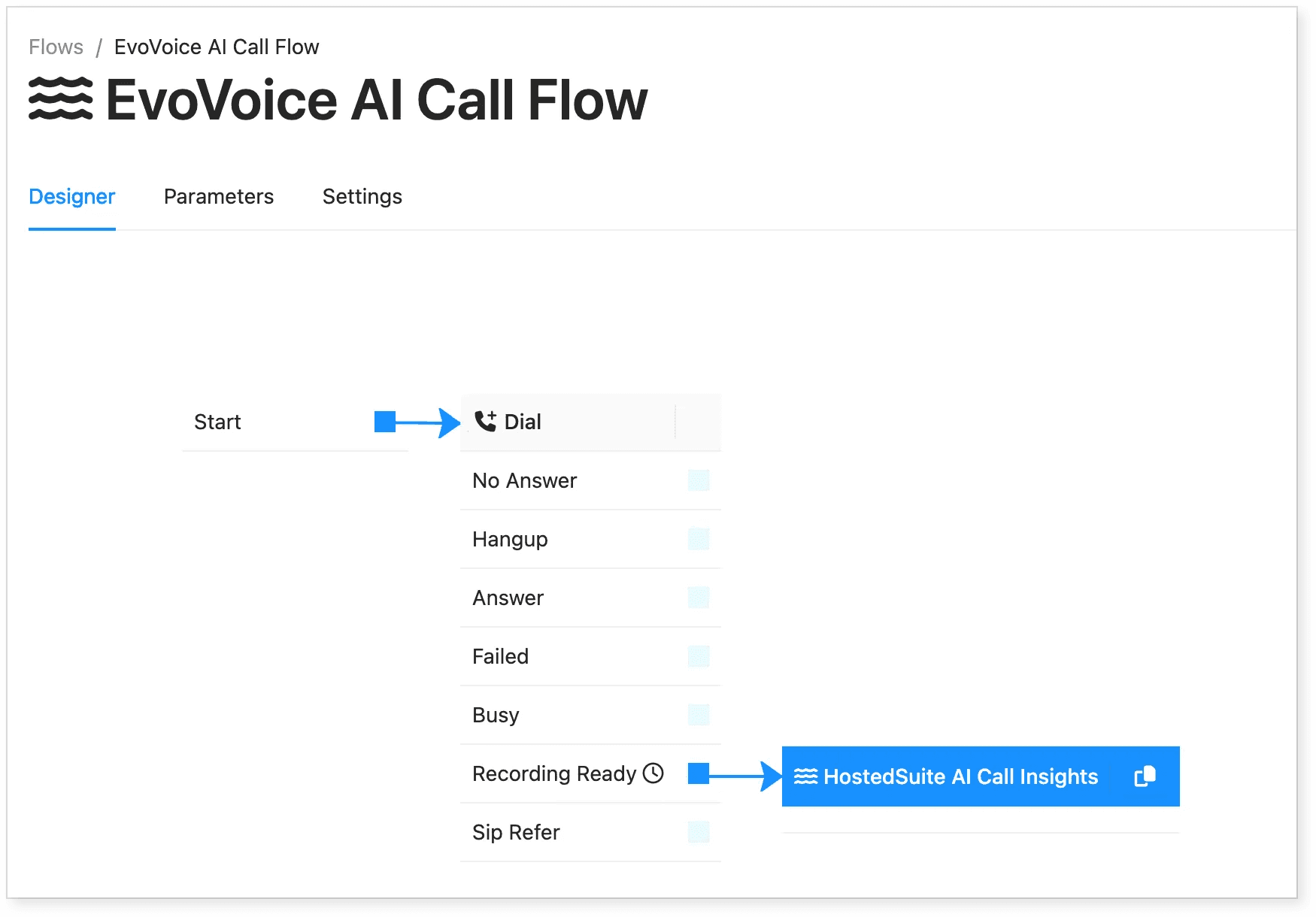
Step 1: Creating the Main Flow with the Dial Node
The first step is to create a main flow that includes both the Dial Node for call handling and the AI Call Insights for processing the recorded calls as part of the Sentinel analysis.
Create a New Flow
-
Open the Flow Designer.
-
Click Create New Flow.
-
Enter a name for the flow.
- Example: "EvoVoice AI Sentinel Call Flow".
-
Click Save.
Step 2: Create an Audio Recording Parameter
This parameter will temporarily hold the recording before sending it to the HostedSuite AI Call Insights sub-node for Sentinel analysis.
-
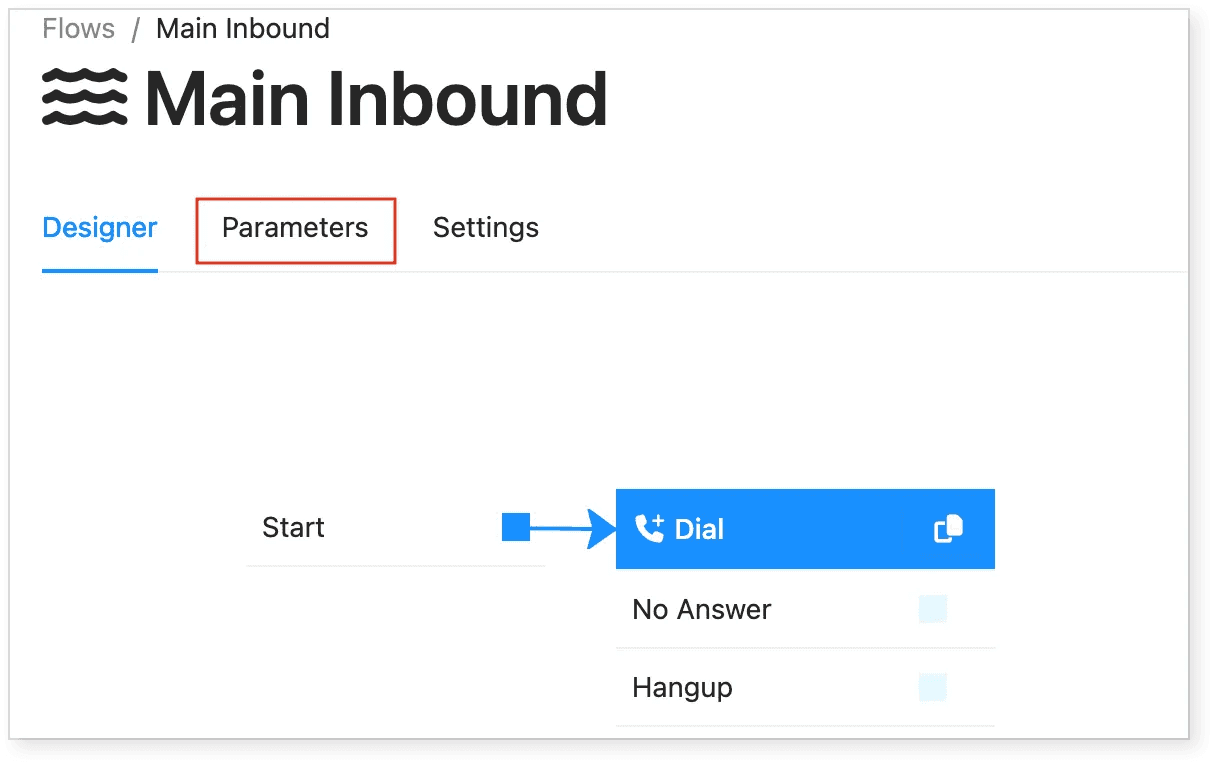
In the Flow Designer, select the Dial Node.
-
Go to the Parameters tab.
-
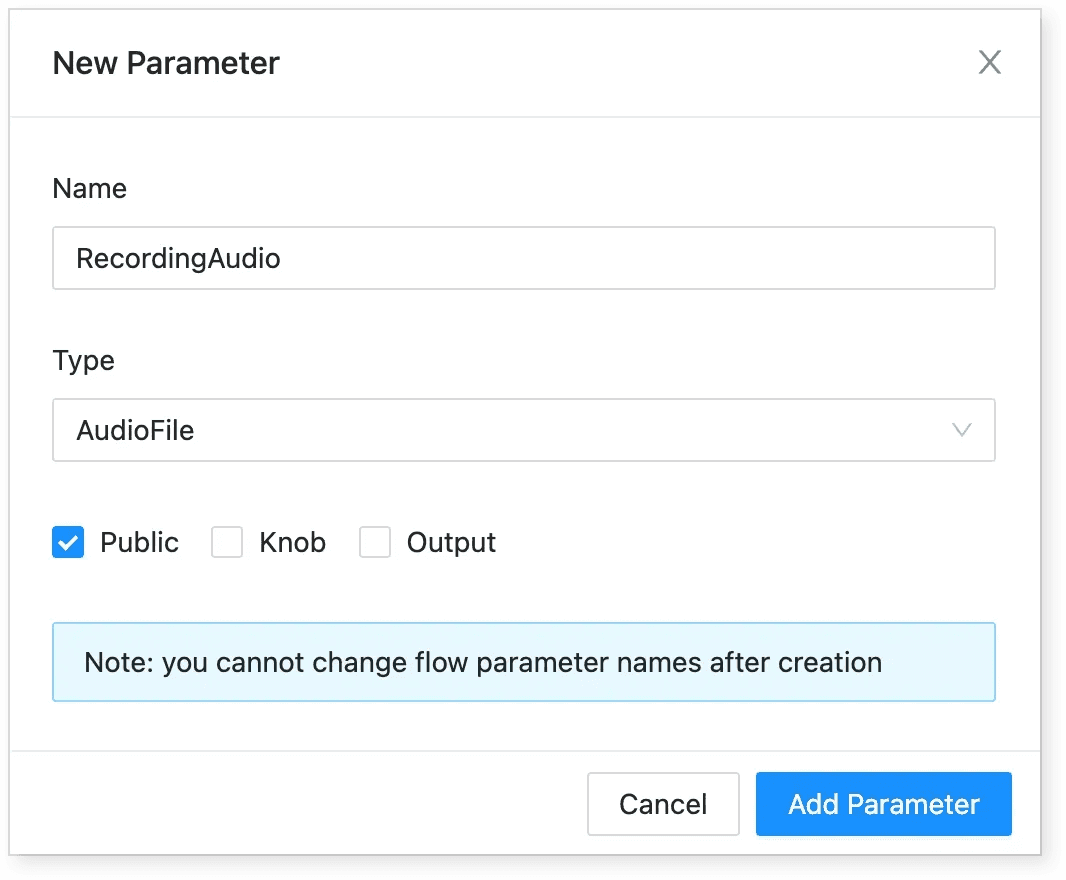
Click Add Parameter, then enter:
-
Name:
RecordingAudio(or any temporary name to store the recording) -
Type:
AudioFile -
Set to Public by enabling this option.
-
-
Click Add Parameter.
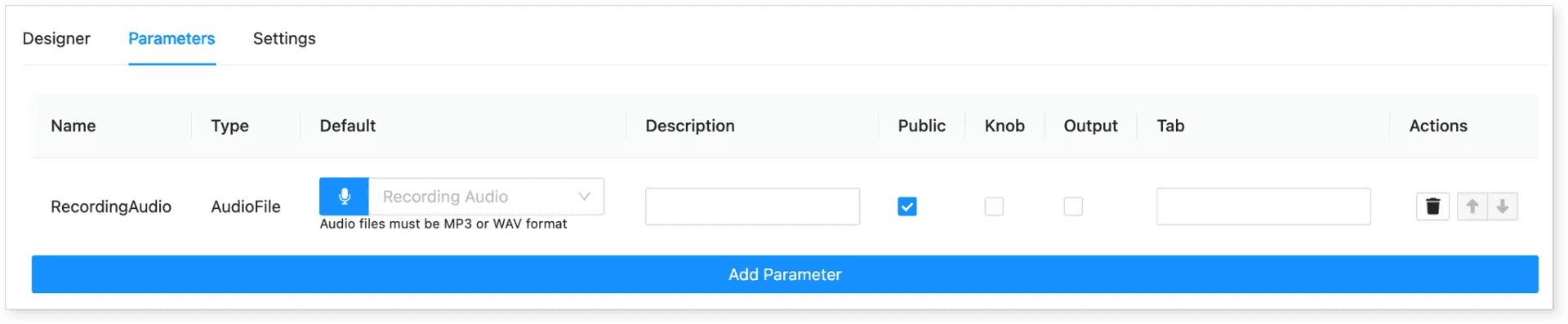
It should look like this once added:
Step 3: Enable the Call Recording Properties
Now we have to enable the call recording capabilities of our Dial Node to ensure that calls are recorded and passed on for AI analysis.
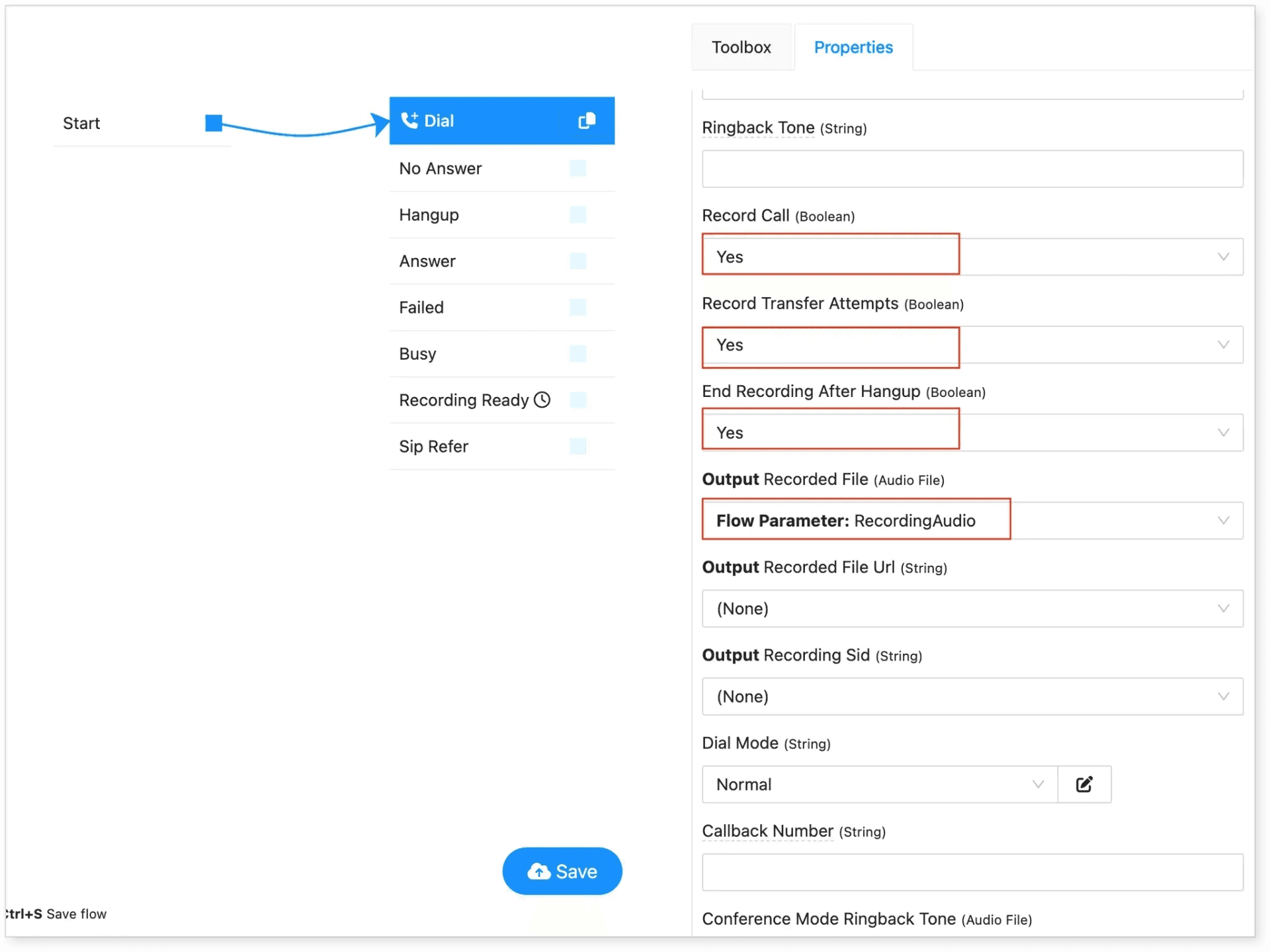
- With the Dial Node selected, click the Properties section/tab to configure the call recording. Follow the settings below to ensure Sentinel analysis can process the calls.
-
Record Call → Yes ✅ Enable recording
-
Record Transfer Attempts → Yes ✅ Record transfer attempts
-
End Recording After Hangup → Yes ✅ Automatically stop recording when the call ends
-
Output → Select the flow parameter we’ve previously created Flow Parameter: RecordingAudio
- Click Save.
Step 4: Adding AI Call Insights to the Same Flow
Since we are integrating AI-powered Sentinel analysis within the same flow, we need to configure the AI Call Insights node directly after the Dial Node.
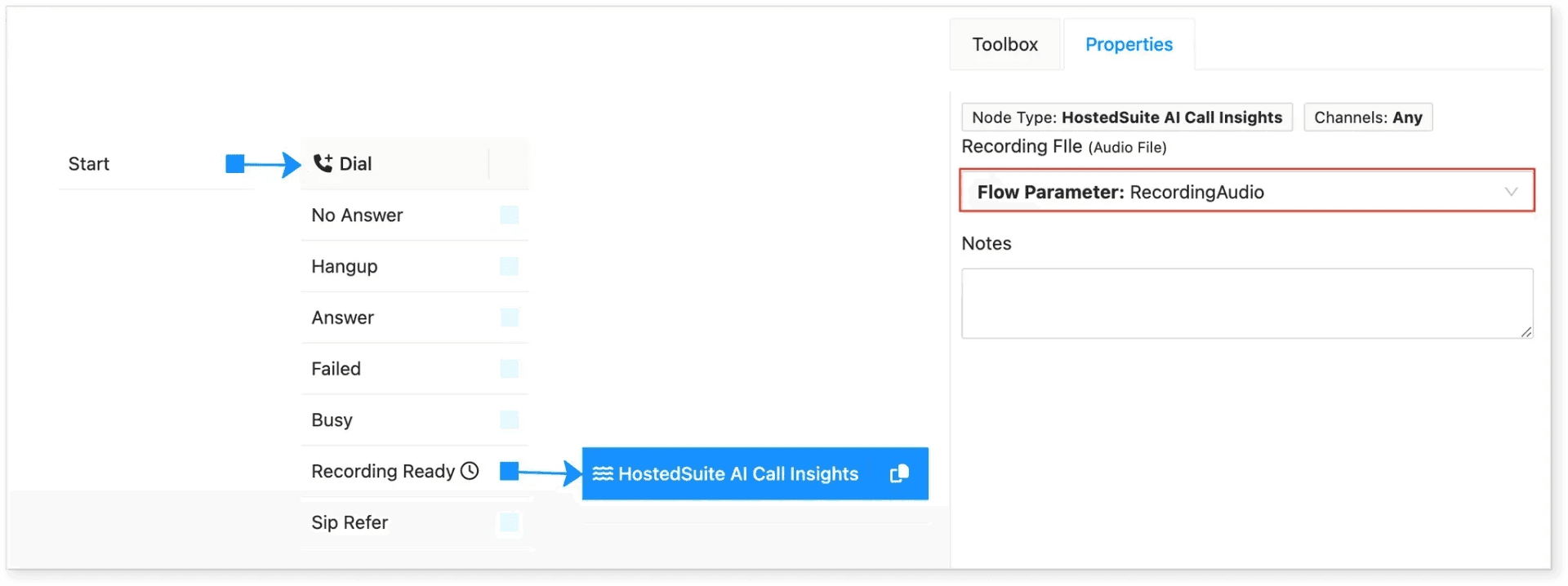
-
Add the HostedSuite AI Call Insights Node to the flow.
-
Click Properties and set the recording file to the flow parameter we’ve created for the Dial Node:
- Recording File →
Flow Parameter: RecordingAudio(parameter from the Dial Node).
- Recording File →
-
Now you can connect the Recording Ready property from the Dial Node to the HostedSuite AI Call Insights Node for Sentinel processing.
-
Click Save.
Please note that the HostedSuite AI Call Insights Node is created separately. You can follow this GUIDE if you haven’t done so.
Final Setup
With these steps completed, your EvoVoice setup is now fully integrated with Sentinel Call AI Insights. Calls will be recorded and processed seamlessly, applying AI insights and providing detailed Sentinel analysis within the HostedSuite dashboard.
For further assistance, contact EvoVoice support.