

Chat puts your AI receptionist on your website as a chat widget. Visitors get the same knowledgeable answers callers do, 24/7, and chat conversations count against your plan's chat allowance rather than your minutes.
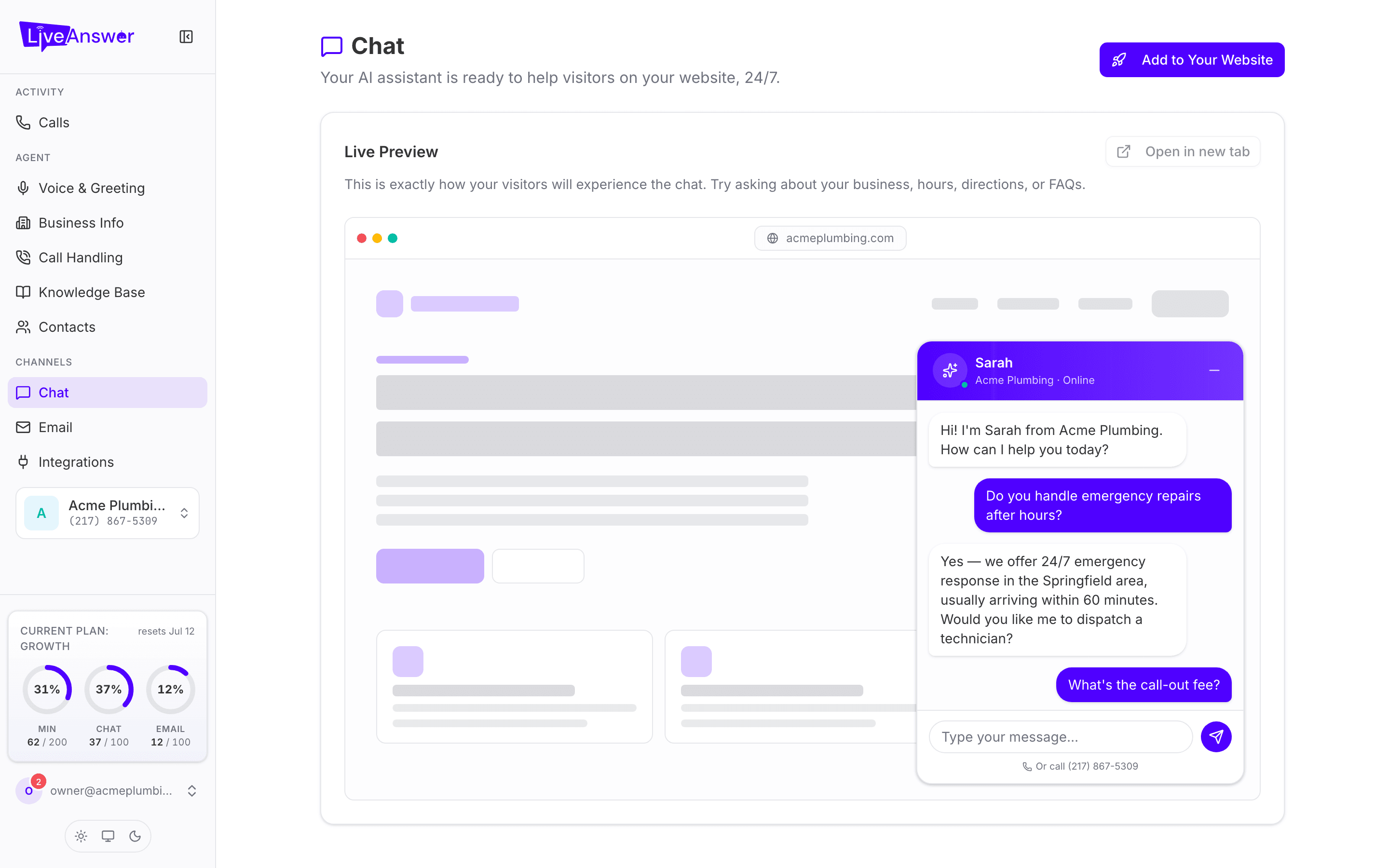
Try it first
The Live Preview on this page is exactly what your visitors will see: a mock-up of your website with the chat widget open in the corner. Type a question about your business, hours, or services and see how your AI responds. Open in new tab gives you a full-screen version to share with colleagues.
Your AI uses the same name, business information, and knowledge base as it does on the phone, so improving those pages improves chat too. The widget also shows your phone number ("Or call…") for visitors who'd rather talk.
Adding it to your site
Click Add to Your Website and pick your website platform:
| Platform | Notes |
|---|---|
| WordPress | Most popular option. Paste the snippet into a site-wide footer via your theme or a code plugin. |
| Shopify | For Shopify storefronts. |
| Wix | For Wix websites. |
| Squarespace | Requires a Squarespace Business plan or higher, which allows custom code. |
| HubSpot | For sites hosted on HubSpot. |
| HTML / Other | Works on any website where you can edit the HTML. |
Each option gives you a short HTML snippet and step-by-step instructions for where to paste it, usually a site-wide footer or custom code area so the widget appears on every page. Copy the snippet, paste it where the instructions say, and publish your site.
Note: If someone else manages your website, send them the snippet and the instructions. It's a one-time, two-minute job for anyone who edits websites.
After it's live
Watch your Chat dial in the sidebar; if you're regularly near the limit, see Plan & Billing for a chat add-on.