

Invoices lists every invoice LiveAnswer has issued to your business, with what's still owed and what you've paid.
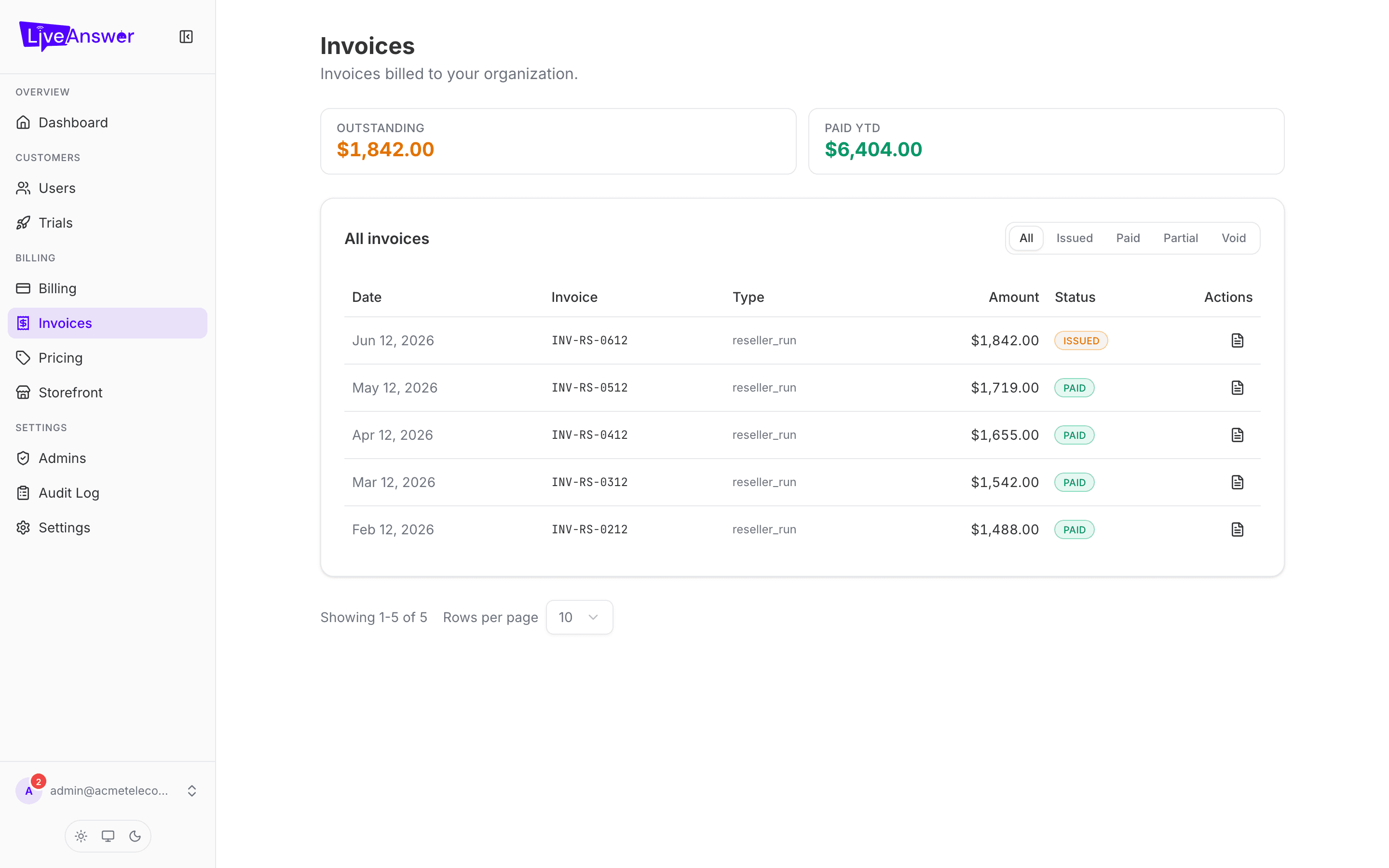
The two totals
- Outstanding — invoices issued but not yet paid (including partially paid ones).
- Paid YTD — everything you've paid so far this year.
The invoice list
Use the pill filter to show All, Issued, Paid, Partial, or Void invoices.
| Column | What it shows |
|---|---|
| Date | When the invoice was issued. |
| Invoice | The invoice number. Click it to open the full invoice. |
| Type | What generated it — usually your monthly reseller run. |
| Amount | The total. |
| Status | Issued (awaiting payment), Paid, Partial (part-paid), or Void (cancelled, nothing owed). |
| Download | Saves the invoice as a PDF for your records or accountant. |
The list is paged; use the controls at the bottom to move between pages or show more per page.
Reading an invoice
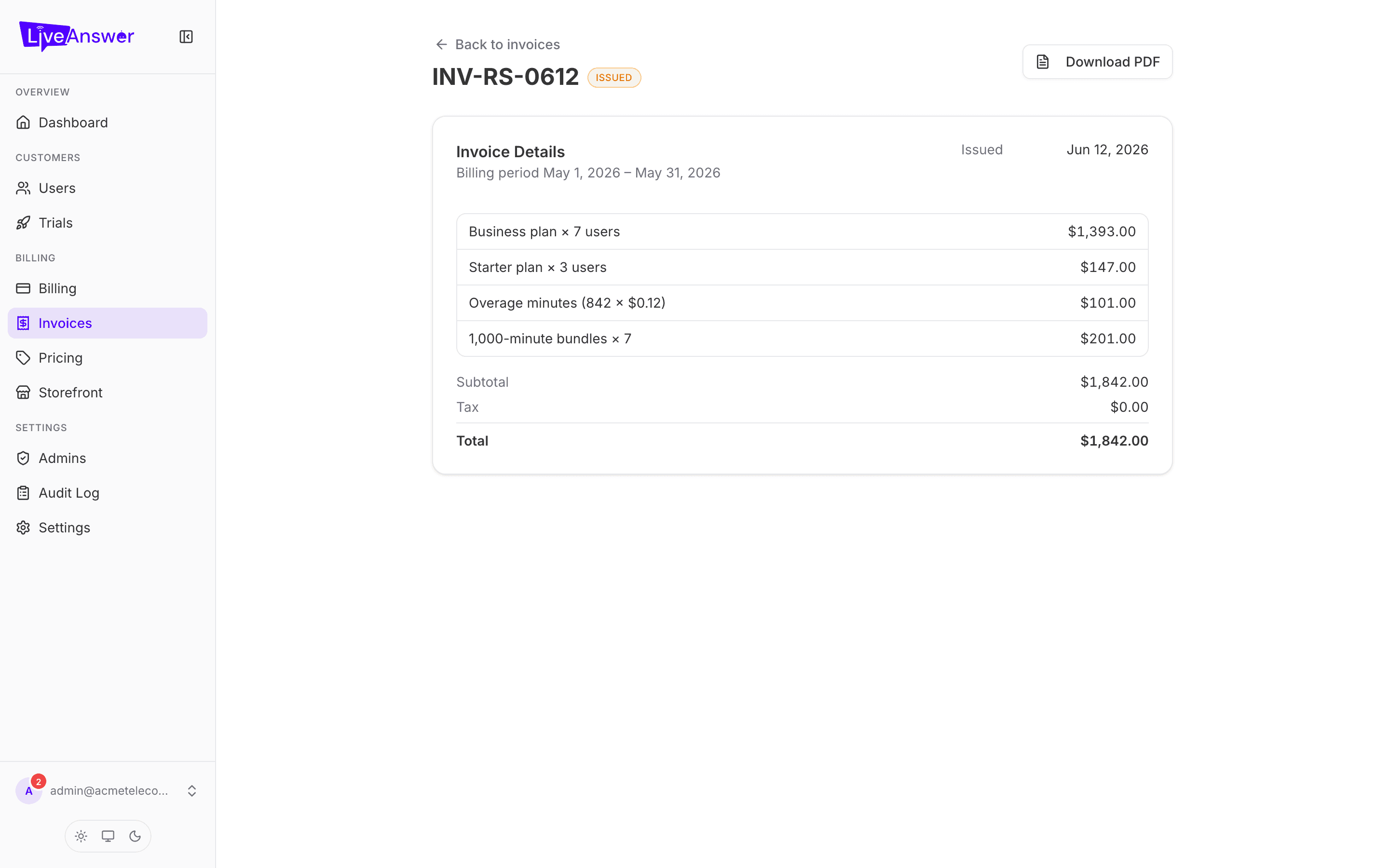
Click an invoice number to open it. You'll see:
- The invoice number and status at the top, with a Download PDF button.
- The billing period it covers and the date it was issued.
- One line per charge: each plan multiplied by the number of customers on it, overage minutes, and any add-on bundles.
- Subtotal, Tax, and Total.
Paying an invoice
- Invoice + autopay: nothing to do — the card on file is charged automatically. If a charge fails, see Billing and your card on file.
- Invoice (manual): pay by the method on your invoice. Once LiveAnswer records the payment the status changes to Paid.
Heads up: Your customers never see these invoices. These are between you and LiveAnswer. Your customers' invoices — if you show them — are what you bill them at your prices.