

Settings is where you shape how LiveAnswer looks and behaves for your customers: your branding, the emails they receive, connected services, and developer access. It's organised into tabs.
General
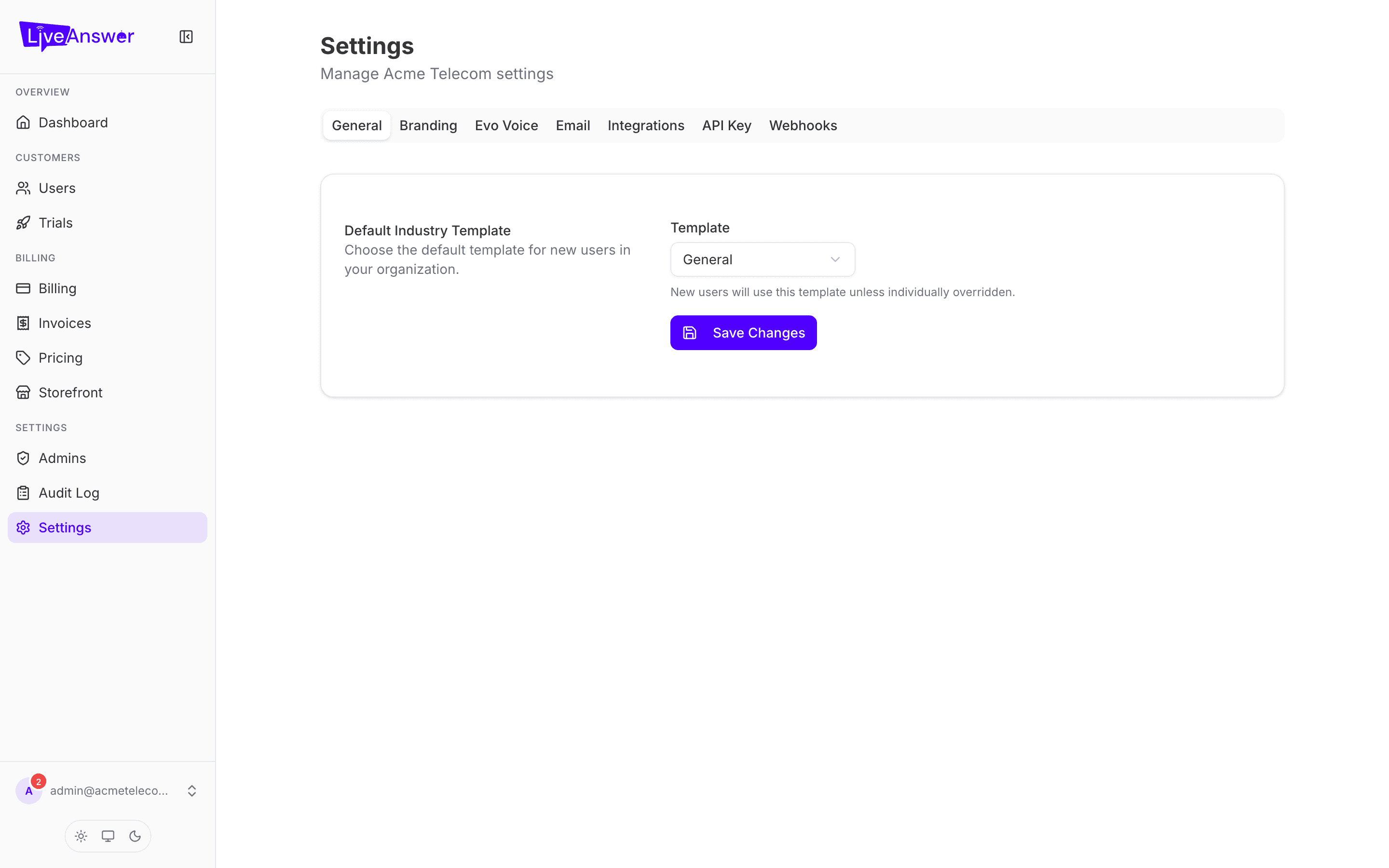
Default template — the industry template new customers start with (for example Home services or Medical / dental). A template preloads the receptionist with the right vocabulary and call-handling defaults for that kind of business. You can still pick a different template for an individual customer when you add them.
Click Save after changing it.
Branding
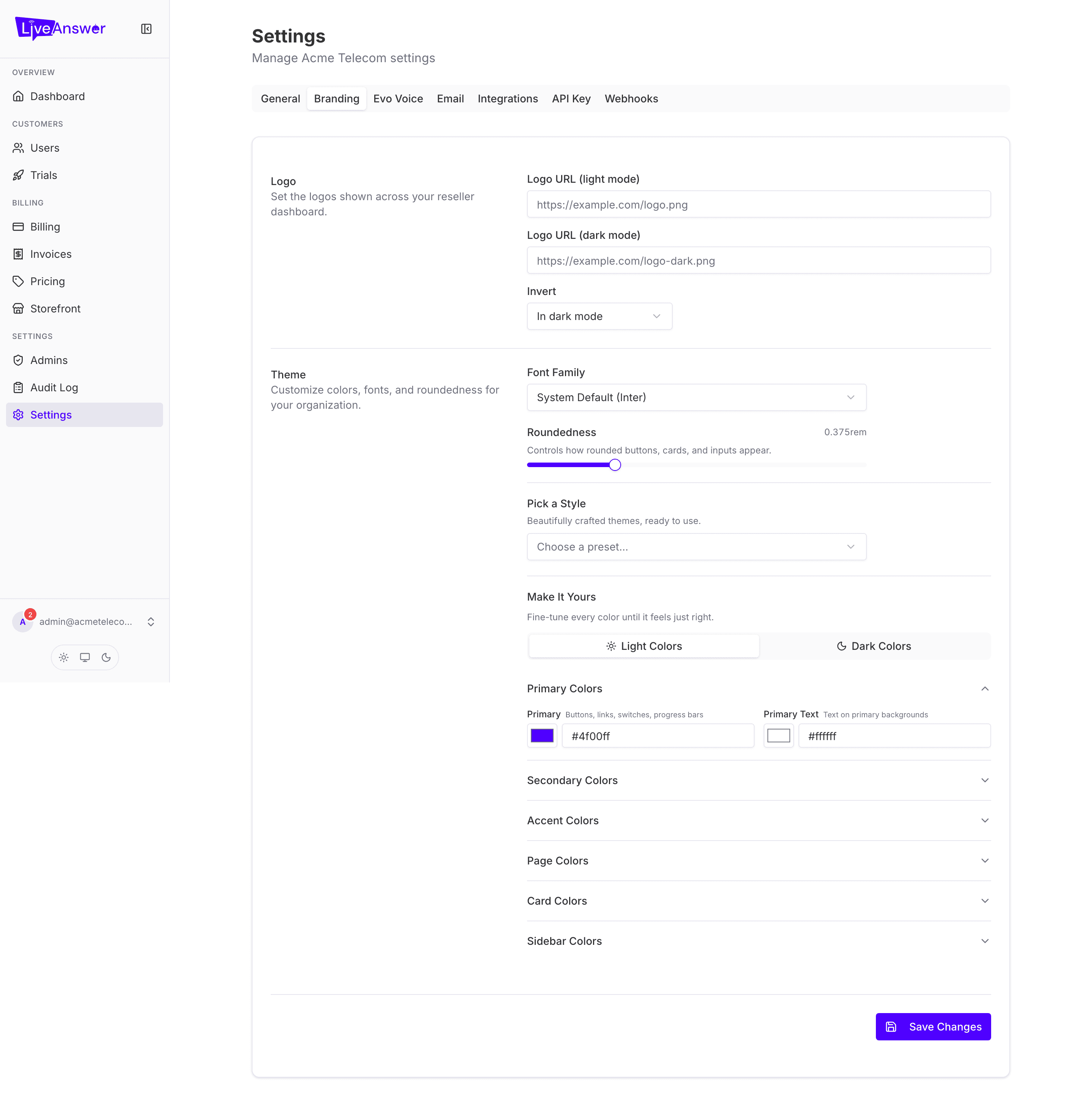
Everything here appears on your storefront and inside your customers' portals, so it reads as your product.
- Logo URL (light mode) and Logo URL (dark mode) — links to your logo images. Use a PNG or SVG with a transparent background. If you only have one logo, put it in both.
- Invert — how the logo behaves in dark mode when you haven't supplied a separate dark version. Auto invert flips colours; No change shows it as-is.
- Theme — pick a preset colour scheme, or fine-tune your primary and accent colours, font, and corner roundness. The preview updates as you go.
Click Save branding. Changes are live for your customers immediately.
Evo Voice
Flow ID — the call-flow your receptionists use on the phone network. This is normally set up by LiveAnswer during onboarding. Don't change it unless your account manager asks you to; an incorrect value stops calls being answered.
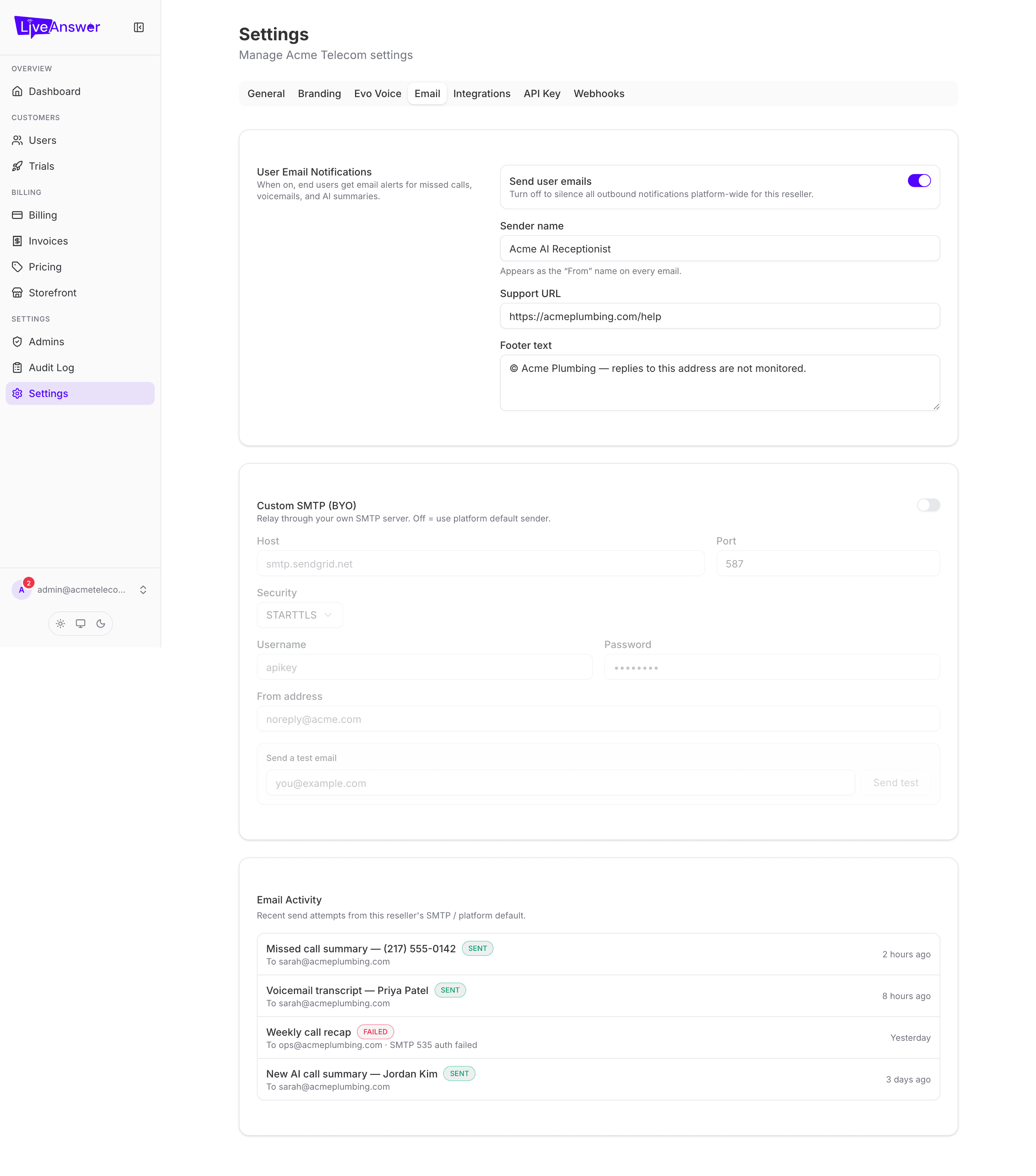
Your customers receive emails from the platform — welcome messages, call summaries, billing notices. This tab controls how those look.
Sender details
- Sender name — the "From" name your customers see, for example Acme AI Receptionist.
- Support URL — where the "Need help?" link in emails points.
- Footer text — a line at the bottom of every email, such as your company name and a note that replies aren't monitored.
SMTP (optional) — by default emails send from LiveAnswer's mail servers. To send from your own domain instead, enter your mail provider's host, port, security setting, username, and password. Use Send test email to check it works before saving.
Note: Sending from your own domain is the most convincing white-label touch, but only set this up if you're comfortable with your email provider's settings, or have your IT person do it.
Integrations
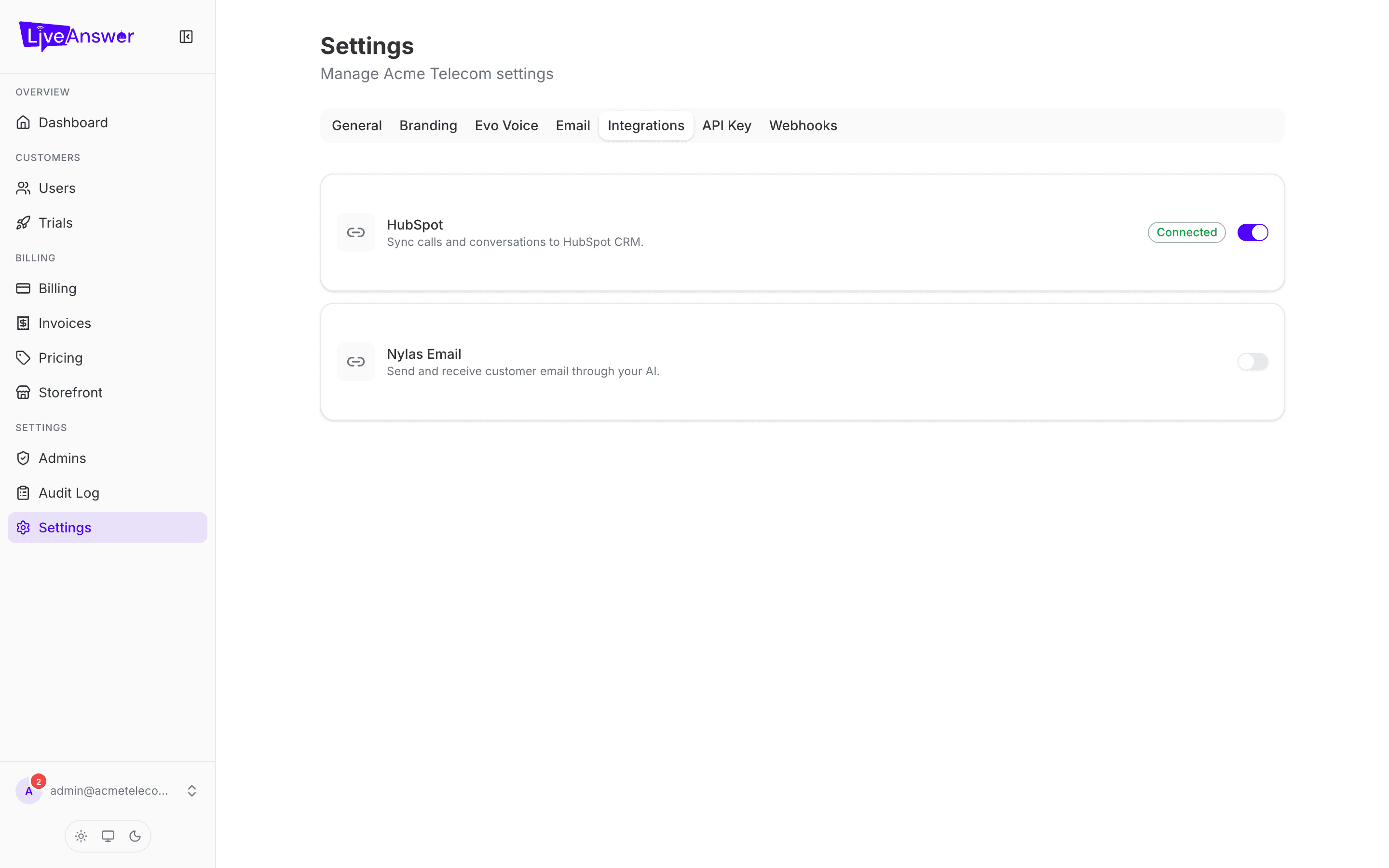
Third-party services your customers can connect their receptionist to. Each card shows whether it's connected and lets you configure it. LiveAnswer enables integrations per reseller; ask your account manager about any you'd like to offer.
API Key
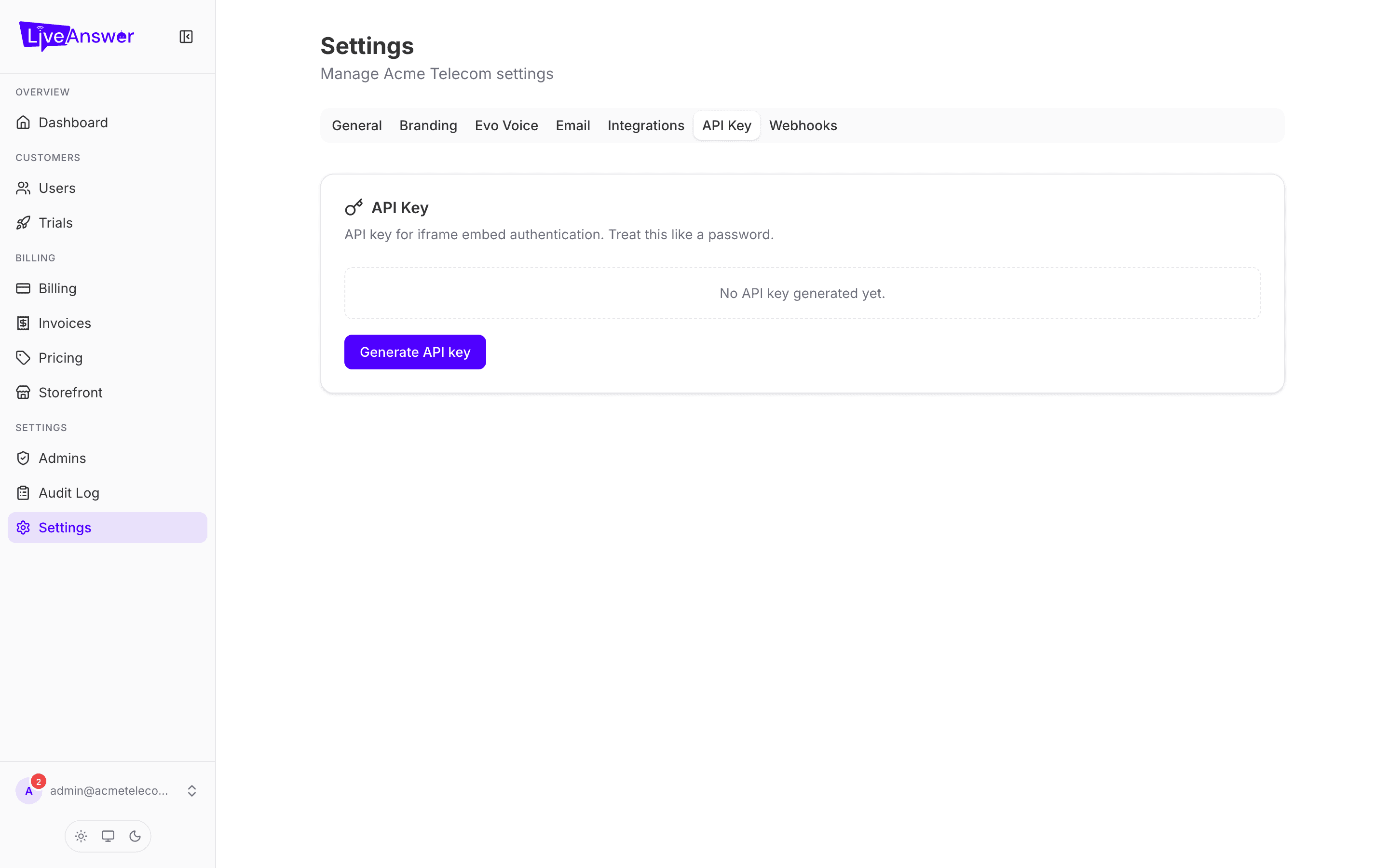
For developers. An API key lets your own systems talk to LiveAnswer — for example, creating customers from your CRM or pulling call data into a report.
- Show / Copy — reveal or copy the key. Store it somewhere safe; treat it like a password.
- Regenerate — issues a new key and immediately stops the old one working. Update anything using the old key first.
- Revoke — stops the key working entirely.
If you don't have developers, you can ignore this tab.
Webhooks
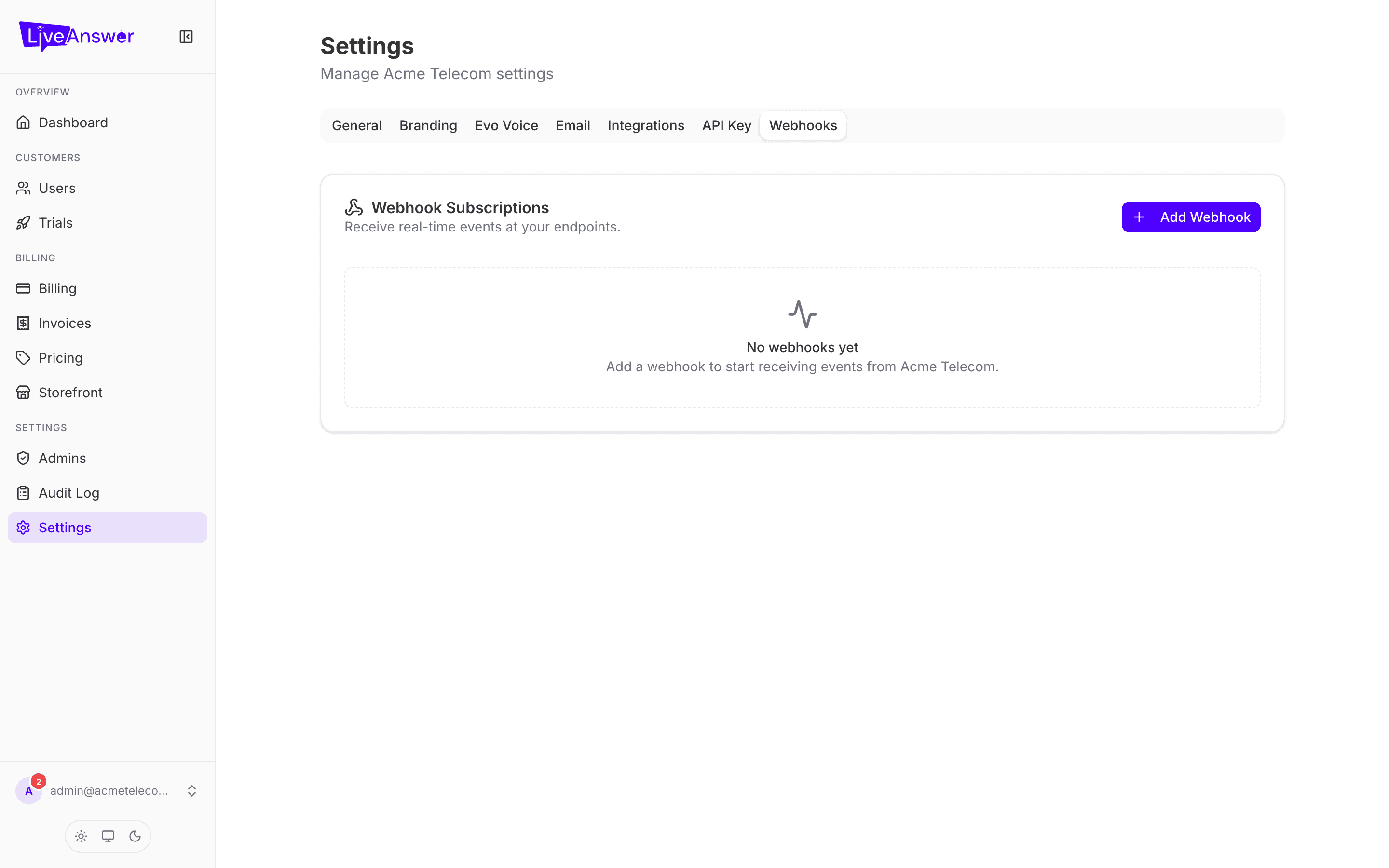
Also for developers. A webhook sends a message to a web address you choose whenever something happens — a call ends, a customer signs up, and so on. Give each webhook a name and the endpoint URL to notify, and pick which events to send.
If you don't have developers, you can ignore this tab too.