

You don't have to run the portal alone. Admins lets you give colleagues their own login, with the right level of access for their job.
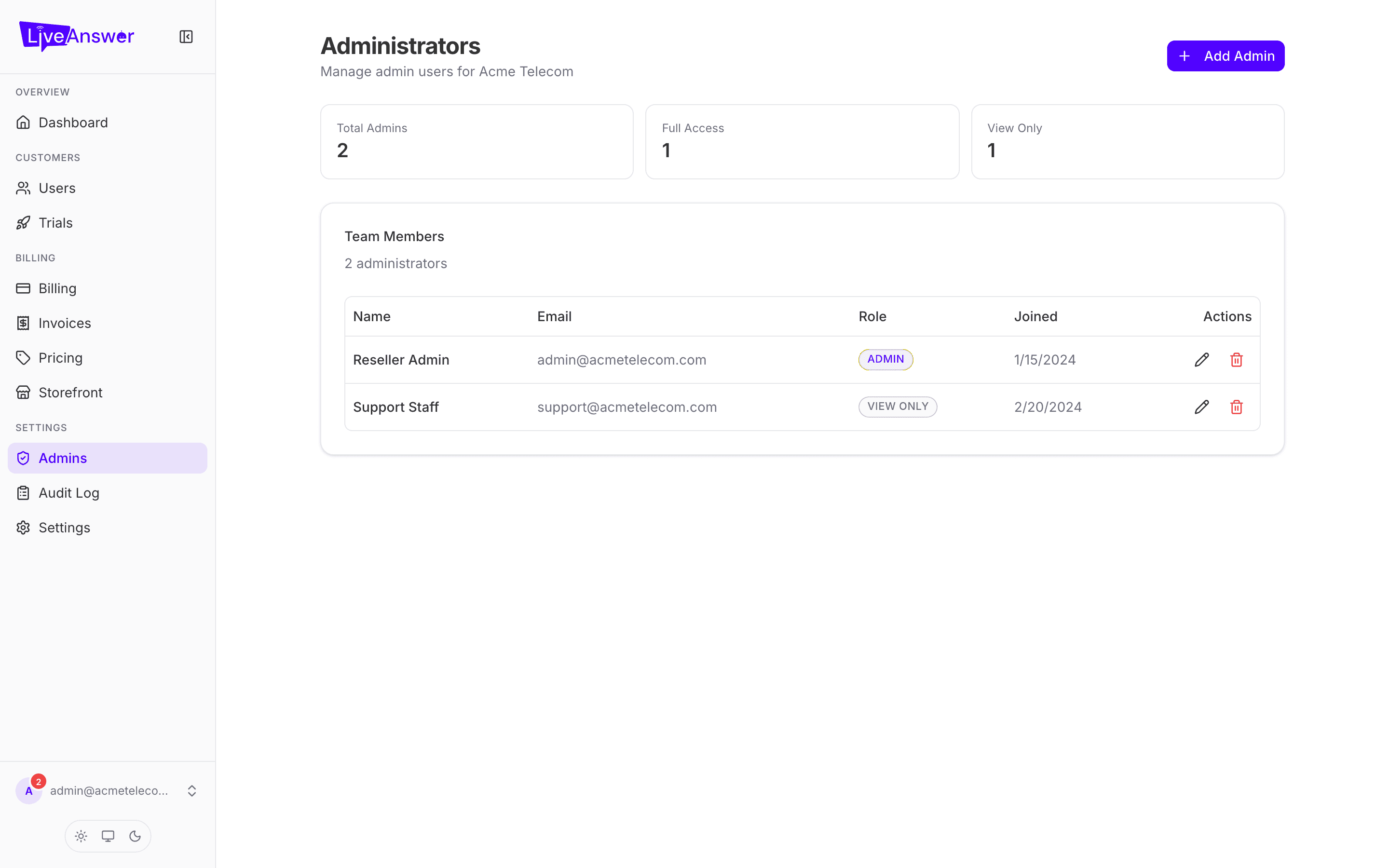
The two roles
| Role | Can do |
|---|---|
| Reseller Admin | Everything you can: add and edit customers, change prices, manage billing, add other team members. |
| Reseller (Read-only) | View everything, change nothing. Ideal for finance, support, or anyone who needs to look things up without the risk of changing them. |
Adding a team member
- Click Add Admin.
- Enter their email and a temporary password (at least 8 characters).
- Optionally add their display name.
- Choose a role.
- Click Add.
Send them the email and password. They can change the password after their first sign-in.
Editing or removing someone
Each row has an Edit and a Remove action.
- Edit — change the display name, set a new password (leave blank to keep the current one), or change the role. Promoting someone from Read-only to Admin takes effect immediately.
- Remove — takes away their access. You'll be asked to confirm. This can't be undone, but you can always add them again.
Heads up: You can't remove yourself. If you need to hand the account over, add the new owner as a Reseller Admin first, then have them remove you.
Changing your own password
Find your own row and click Edit. Enter a new password and save.