

Call Handling is where you teach your AI what to do on a call, not just what to say. Each scenario describes a kind of call and the steps your AI follows when it recognises one: collect details, send a link, or transfer to a person.
How scenarios work
When a caller explains why they're calling, your AI matches them to the closest scenario and follows its action. A plumbing business might have scenarios for Emergency repair (transfer to the on-call plumber), Book a service (collect name, address, and issue), and Pay an invoice (send a link to the customer portal).
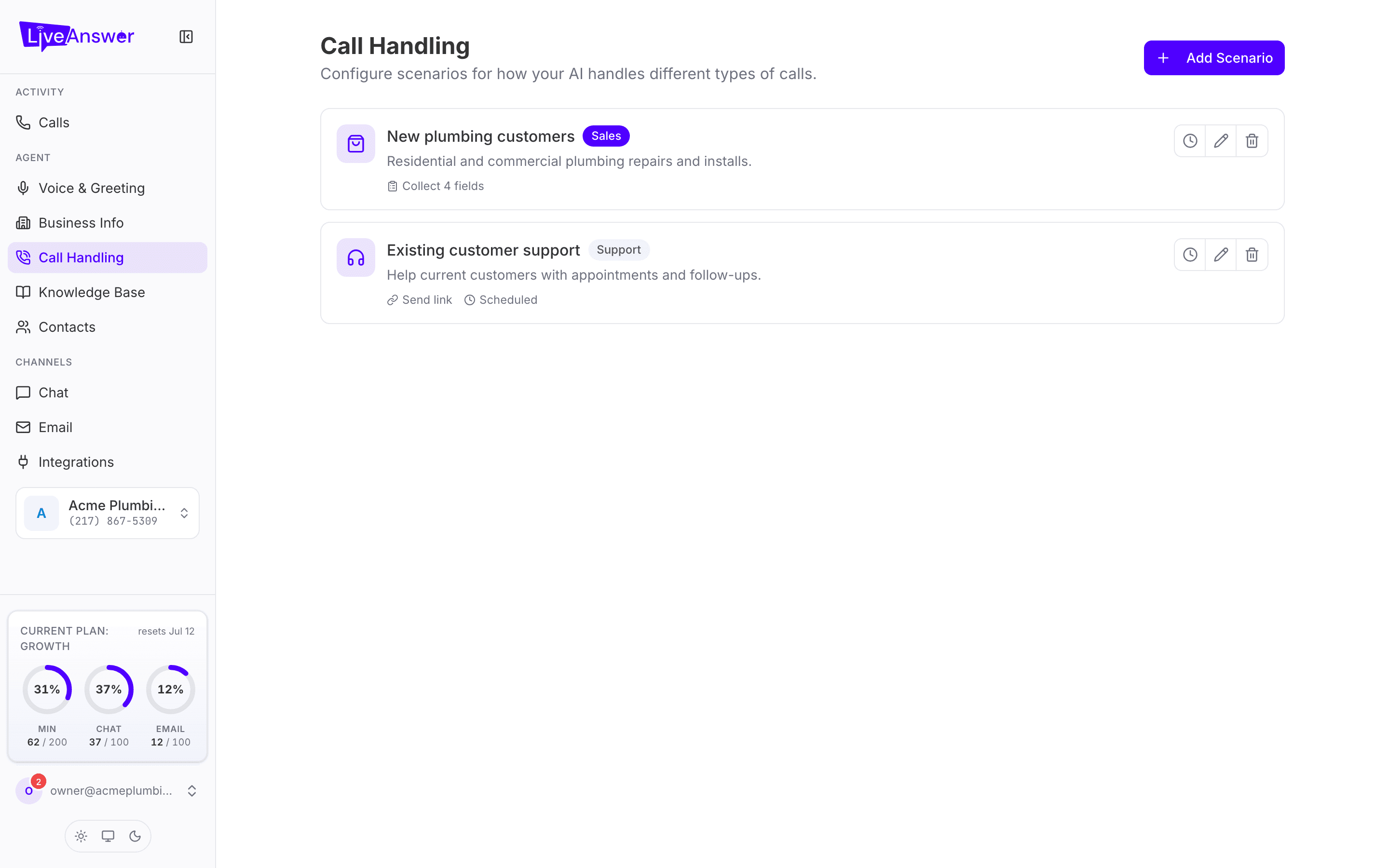
Each scenario card shows its name, a Sales or Support badge, what it does (for example Collect 4 fields or Send link), and a Scheduled badge if it only runs at certain times.
Adding a scenario
Click Add Scenario. A short wizard walks you through it:
- Type — Sales for calls about buying your products or services, Support for existing customers who need help.
- Details — a Scenario Name (for example Demo Request), the Service Offering it relates to, and a plain-language description of when to use it ("When a caller asks about a leak or burst pipe"). Be specific here; this is how your AI decides which scenario fits.
- Action — what your AI should do:
- Complete Form — collect information from the caller. Add the Custom Fields you need (name, address, best time to call…) and a Completion Message your AI says at the end, such as "Thank you, we'll send you a quote within 24 hours".
- Send Link — text or email the caller a link (they choose which). Enter the URL and a short description of what it is.
- Transfer Call — hand the call to one of your Contacts. You can turn on Call Screening so your AI asks the contact's screening questions first (see Contacts).
- Review — check the summary and save.
Editing, scheduling, and deleting
Each card has three icons:
- Schedule (clock) — limit when this scenario is active. Turn on Schedule enabled, then set the days and hours. Use Quick set for common patterns like business hours. A scenario outside its schedule is ignored and your AI falls back to the others.
- Edit (pencil) — reopen the wizard with the current settings.
- Delete (bin) — removes the scenario after you confirm. This can't be undone, but you can always recreate it.
Tips
- Start with two or three scenarios covering your most common calls. Add more as you listen to real calls on the Calls page.
- Give each scenario a clearly different "when to use it" description. If two overlap, your AI may pick the wrong one.
- For anything urgent, use Transfer Call rather than a form. Callers with an emergency want a person.