

Contacts are the real people your AI receptionist can put callers through to: you, your team, an on-call line. This page is where you add them, set when they're available, and control what your AI says around a transfer.
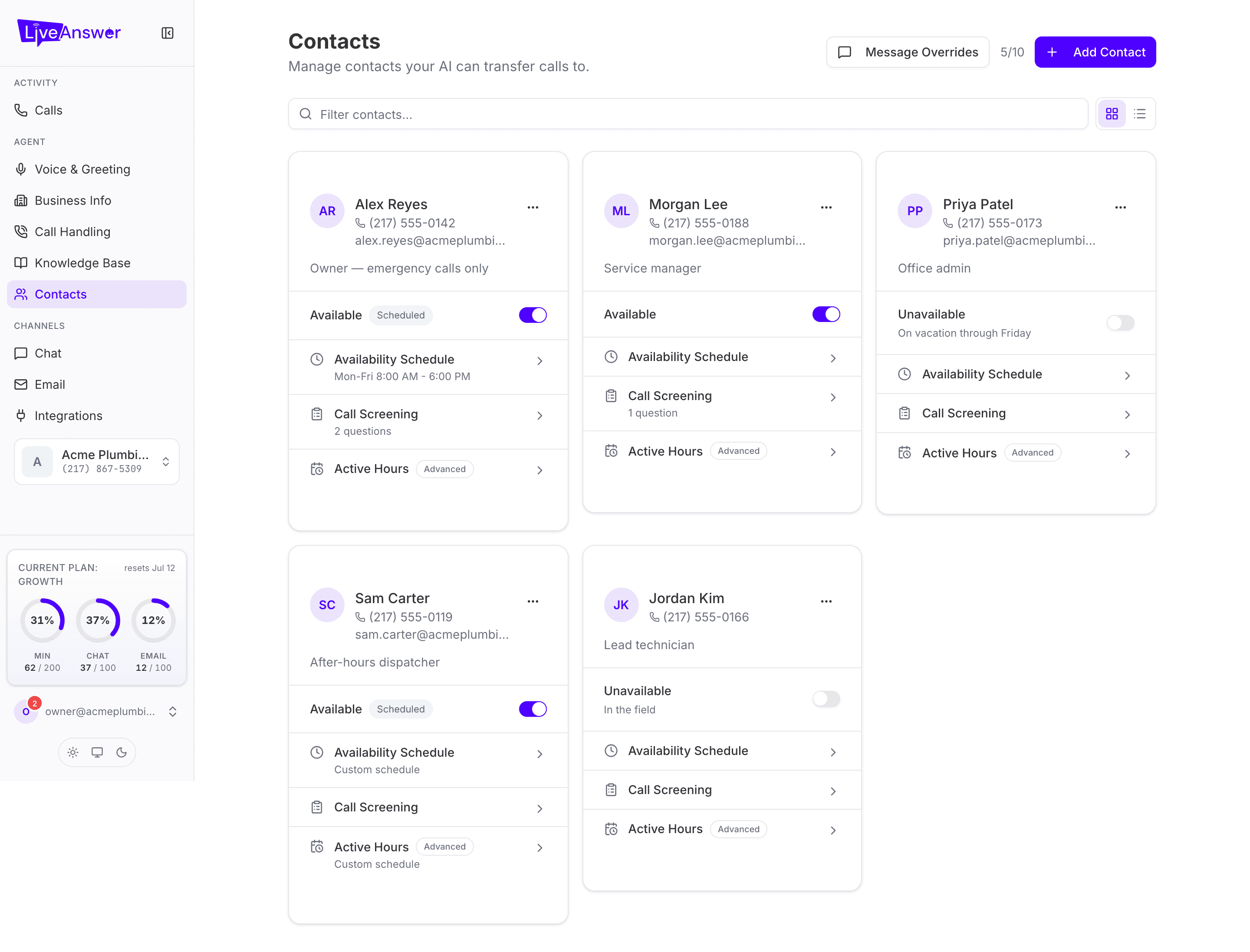
The contact list
Each card shows the person's name, role, phone number, and email, plus:
- An Available switch — turn it off to stop transfers to this person for now (on holiday, in a meeting). Your AI takes a message instead.
- A Scheduled badge if the contact has an availability schedule.
- A small counter (for example 5 / 10) showing how many contacts you've used of your plan's allowance.
Use the filter box to find someone, and the grid / list buttons to change the layout.
Adding a contact
- Click Add Contact.
- Enter their First Name and Last Name. Your AI uses these when announcing the transfer.
- Enter their Phone Number, including area code. This is where your AI dials.
- Optionally add an Email (used for call summaries after a transfer) and a short note about the person, such as Owner — emergency calls only.
- Choose a Transfer Type:
- Blind — your AI connects the caller straight through.
- Supervised — your AI speaks to the contact first, explains who's calling, and only connects if they accept. Slower, but nothing lands on someone unprepared.
- Click Save.
Per-contact settings
Open a contact's actions menu (the three dots on the card) for:
Availability Schedule
Set the days and hours this person can take calls. Turn on Schedule enabled, then choose what happens During hours (usually a transfer) and After hours: Blind Transfer, Supervised Transfer, Take Message, or Do Not Disturb. You can also send after-hours calls to a different number, such as an answering service. Quick set fills in common patterns.
Call Screening
Questions your AI asks the caller before transferring, so the contact only gets calls that qualify. For each question set:
- The Question exactly as your AI should ask it: "Is this an emergency that cannot wait until business hours?"
- What to do with the answer: Collect info only (pass it along) or Required to transfer (only transfer if it matches).
- For required questions, the Expected answer in plain language, and optionally what your AI says when the answer doesn't match.
Edit and Delete
Edit reopens the contact form. Delete Contact removes them after you confirm; scenarios that transferred to them will need a new contact.
Message Overrides
The Overrides button at the top of the page lets you change the phrases your AI uses around transfers and messages, for every contact:
| Phrase | When it's said |
|---|---|
| Before Transfer | Just before your AI connects the caller. |
| Voicemail Prompt | When your AI takes a message instead of transferring. |
| After Message | Once the caller has left their message. |
| Caller on Hold | While your AI is working, so the line isn't silent. |
Leave any of them blank to use the friendly defaults.
Heads up: Test a transfer to each new contact. Make sure their phone accepts calls from your LiveAnswer number and that they know to expect them.