
Client templates create a list of contacts that pop up on the right side of the console when a call comes in. You can copy rows and CSS from the default template, select a client, and the output will be displayed. You can also edit the HTML and add more fields as needed.
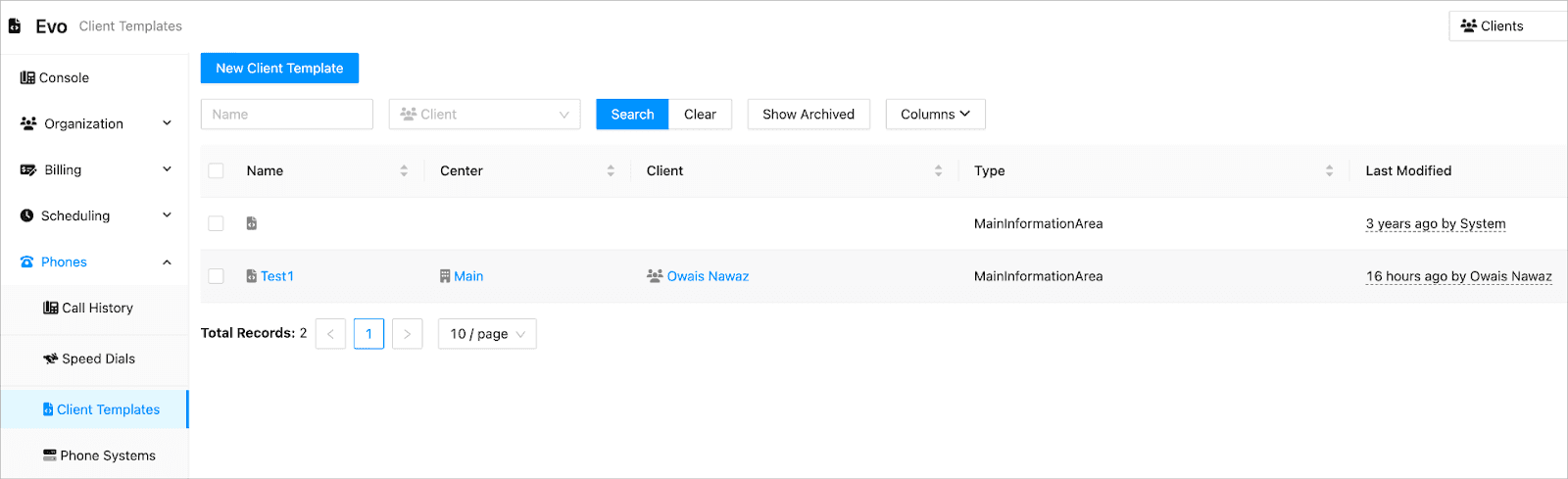
Accessing Client Templates
-
In the Phones menu, select Client Templates.
-
In the list of client templates, click the name of the template you'd like to view.
Editing Client Templates
-
In the Phones menu, select Client Templates.
-
In the list of client templates, click the name of the template you'd like to edit.
-
In the General tab, make your updates in the fields and click the Save button.
-
Click on the Designer tab and update the HTML/CSS code.
-
Click Save to apply the changes.
Adding a New Client Template
-
In the Phones menu, select Client Templates.
-
Click New Client Template.
-
In the General tab, add template details.
-
In the Designer tab, add the HTML and CSS to design your template.
-
Click Save to add the new template.