
Speed dial simplifies connecting with frequently dialed phone numbers in your client's contact list.
Accessing Speed Dials
In the HostedSuite Portal:
-
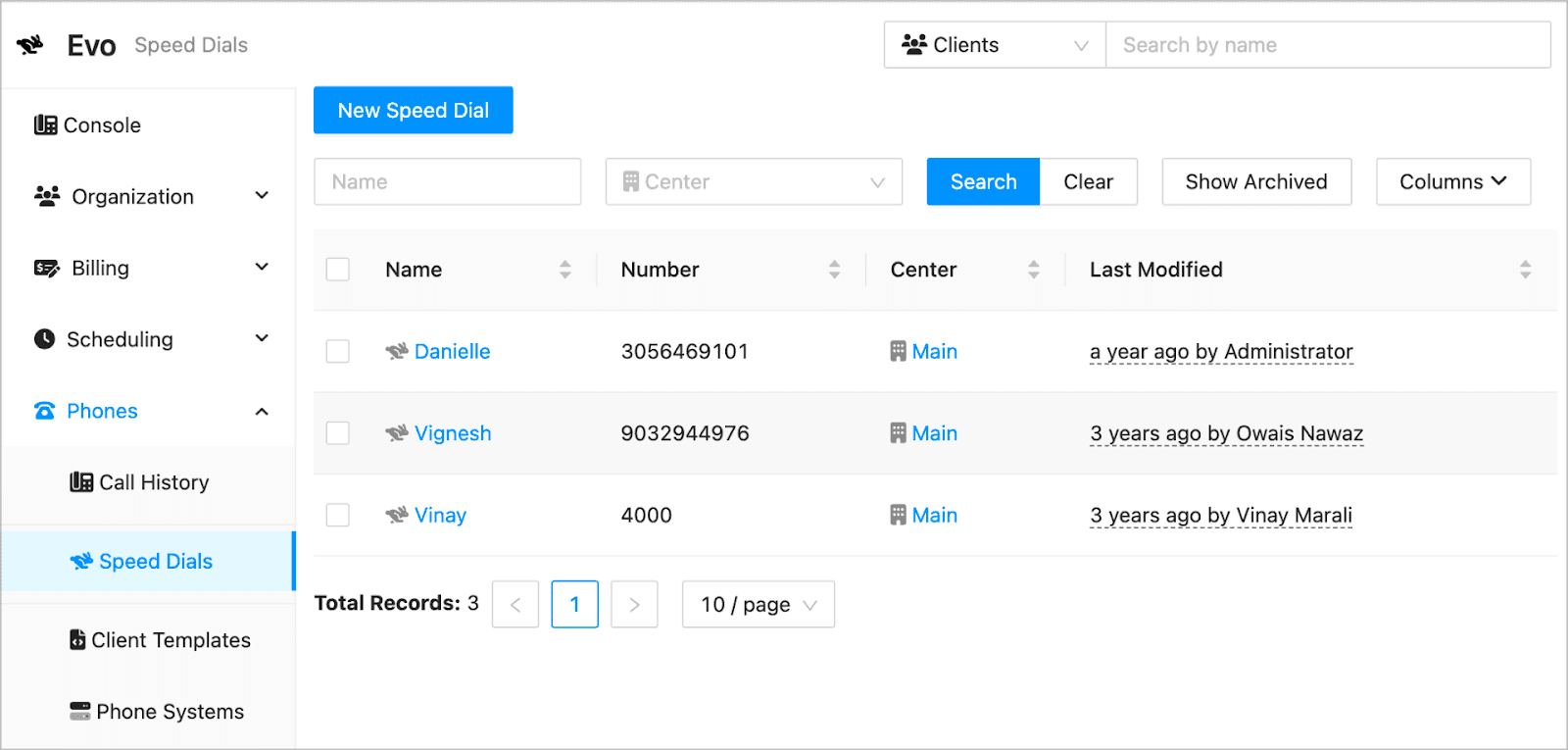
In your HostedSuite portal, click on Phones.
-
Select Speed Dials.
In the Console:
-
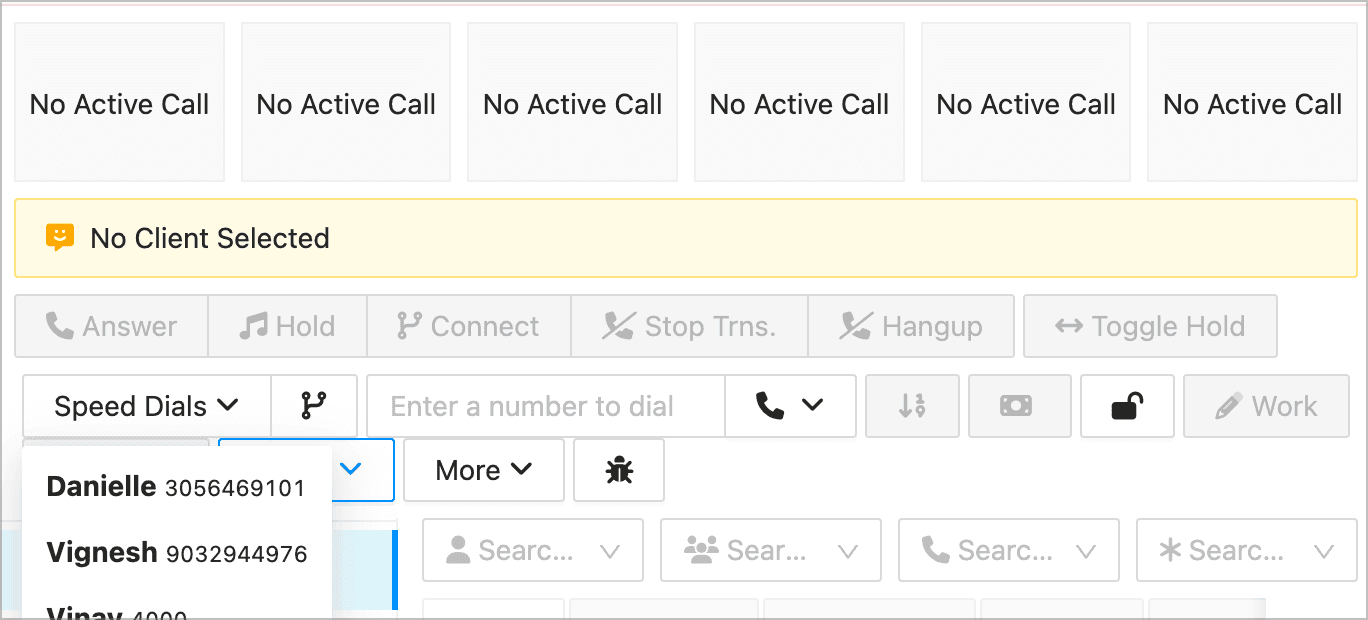
In the Console, click the Speed Dial button.
-
You'll see the list of all saved speed dials.
Adding a New Speed Dial Entry
-
In your HostedSuite portal, click on Phones.
-
Select Speed Dials.
-
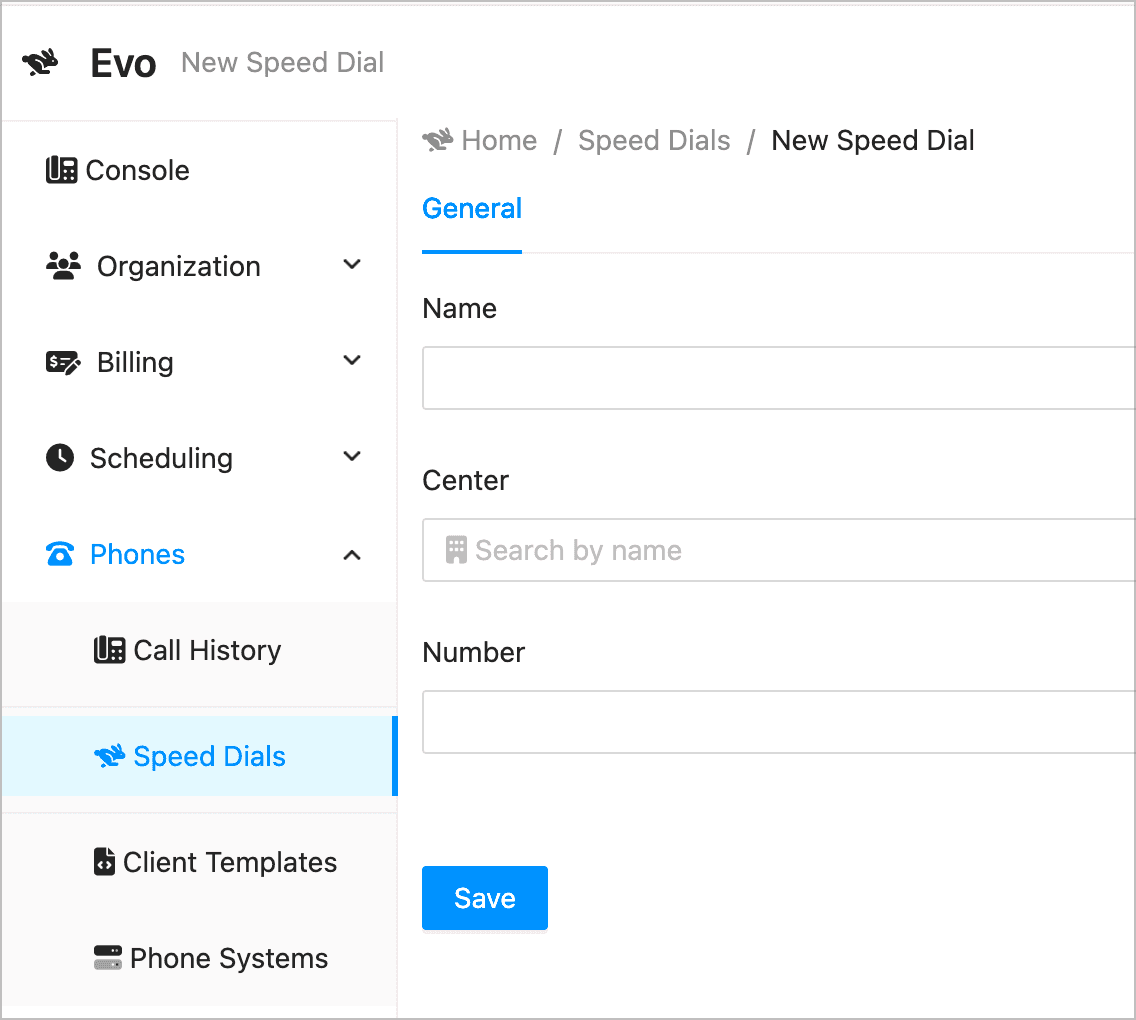
Click New Speed Dial.
-
Add the name that will appear in the speed dial list.
-
Select a center.
-
Enter the speed dial number.
-
Click Save.
Editing a Speed Dial Entry
-
In your HostedSuite portal, click on Phones.
-
Select a speed dial entry by clicking on it.
-
Update one or more details of the speed dial list.
-
Click Save to apply the changes.
Understanding the Speed Dial Table Columns
| Column | Description |
|---|---|
| Name | The display name of the speed dial contact. |
| Number | The phone number or internal extension assigned to the speed dial. |
| Center | The associated center where the speed dial applies. |
| Last Modified | Indicates when and by whom the speed dial entry was last updated. |
You can also:
-
Use the Search bar to quickly find a contact.
-
Click Show Archived to view previously archived speed dials.
-
Customize visible columns using the Columns dropdown menu.